
BotWorld product guide
BotWorld is the platform entry point for robot resources. Use it to discover, obtain, reuse and publish robot digital assets, including models, datasets and engineering projects. When a resource is suitable for further work, you can import it into professional tools such as URDF Studio, Motion Studio or BotLab.
If this is your first time here, start with the BotWorld quickstart to complete one pass through signing in, finding a resource, opening its detail page and importing it into a tool. This page follows the August 13, 2026 product manual and covers BotWorld's resource structure, interface areas, filters, acquisition methods, interaction features and publishing workflow.
Product Overview
The platform serves robot developers, content creators and ecosystem partners. It covers robot digital asset discovery, model design, motion processing, control authoring, simulation validation and physical robot deployment. BotWorld, URDF Studio, Motion Studio, BotLab and OmO can be used independently, or connected into one robot development workflow.
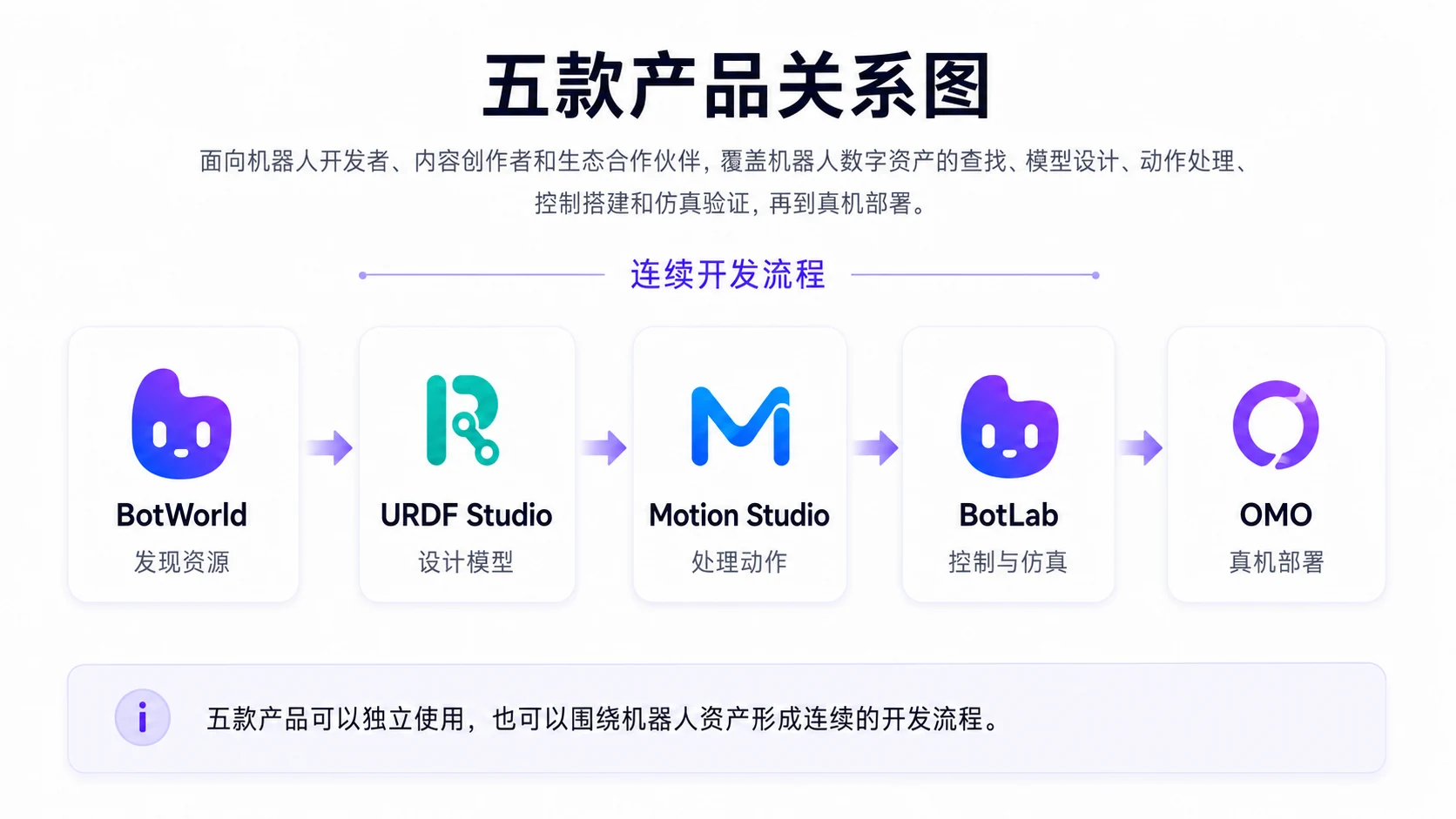
After entering the platform, choose the product you want to use from the product guide page.
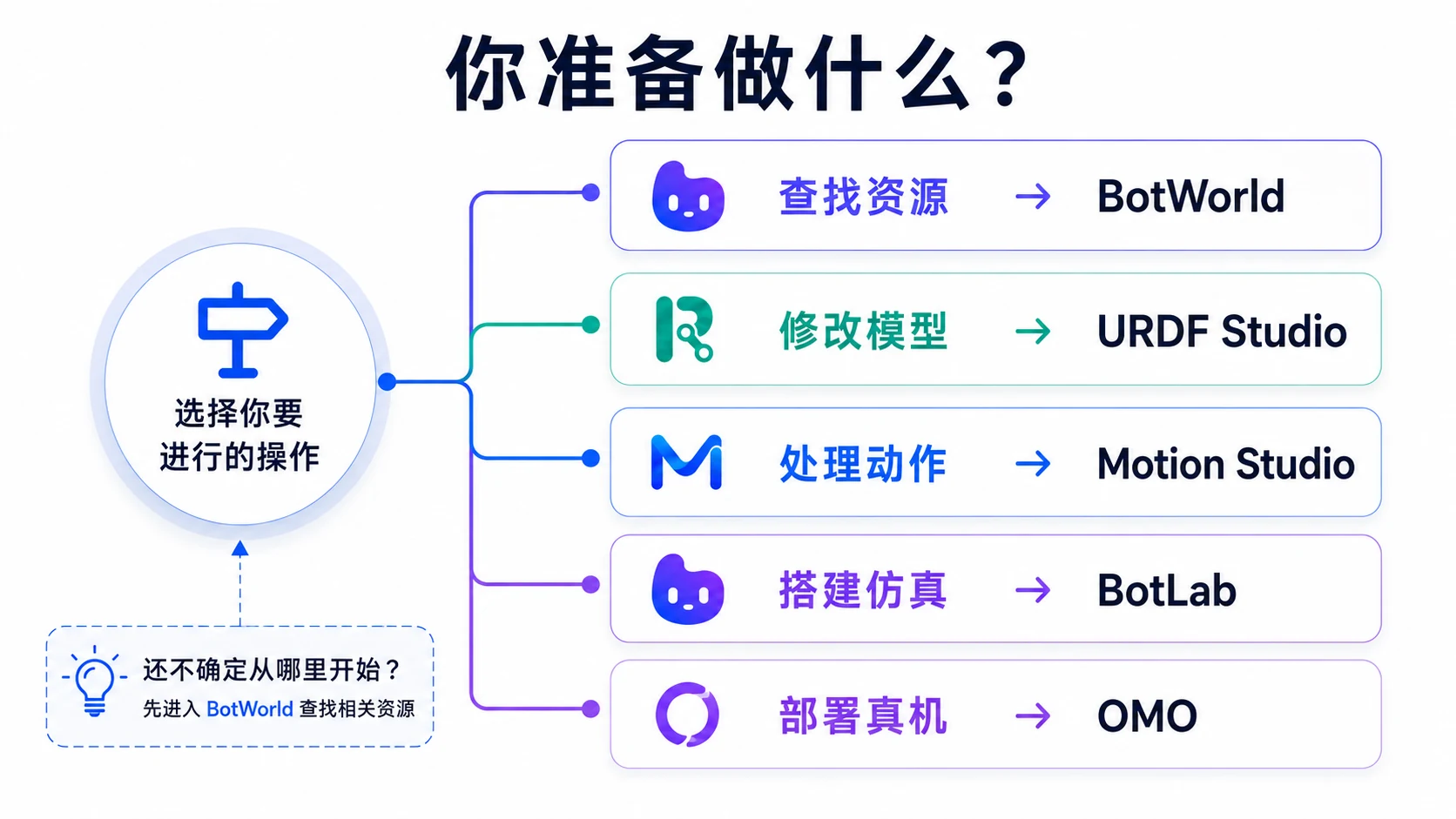
| Product | Role |
|---|---|
| BotWorld | Asset discovery, community interaction and creator services |
| URDF Studio | Robot model viewing, editing and assembly |
| Motion Studio | Robot motion data processing |
| BotLab | Robot simulation validation |
| OmO | Physical robot deployment |
New users should usually start in BotWorld, find a resource, then enter the matching tool for the next step.
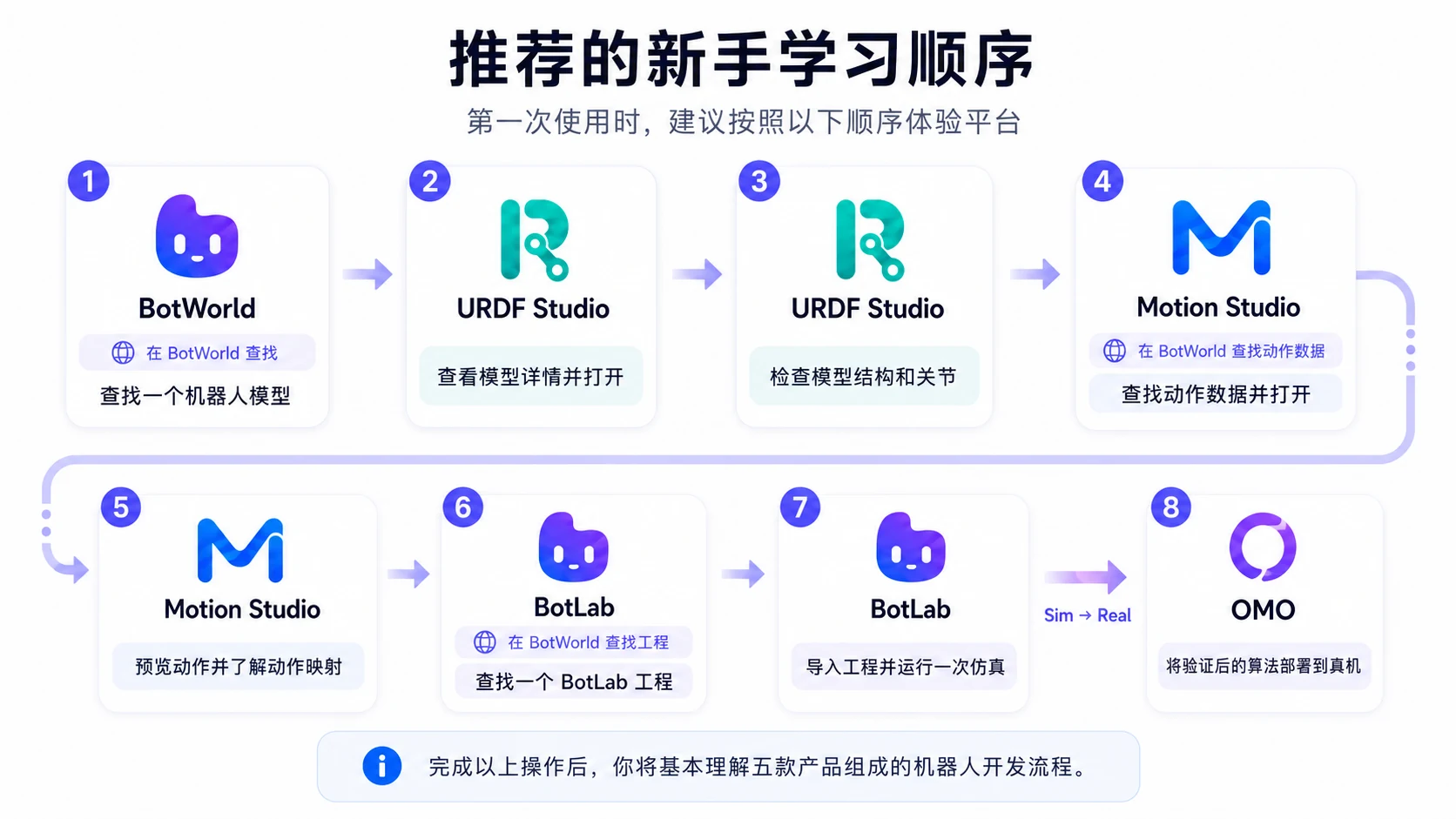
BotWorld's Role
BotWorld is the entry point for the full workflow. Users find, obtain and reuse robot digital assets here, including models, data and engineering files. Creators can also publish their own work.
The current version opens BotWorld and URDF Studio. Tutorials for Motion Studio, BotLab and OmO will be added after those product workflows settle.
Who It Is For
| User role | Core need | Value received |
|---|---|---|
| Resource users | Find and obtain robot models, data and projects | Browse galleries, search, filter, download and import assets quickly |
| Content creators | Publish work and show results | Asset submission, profile pages and creator badges |
| Community operators | Review content and manage recommendations | Submission review, recommendation management and creator verification |
Interface Overview
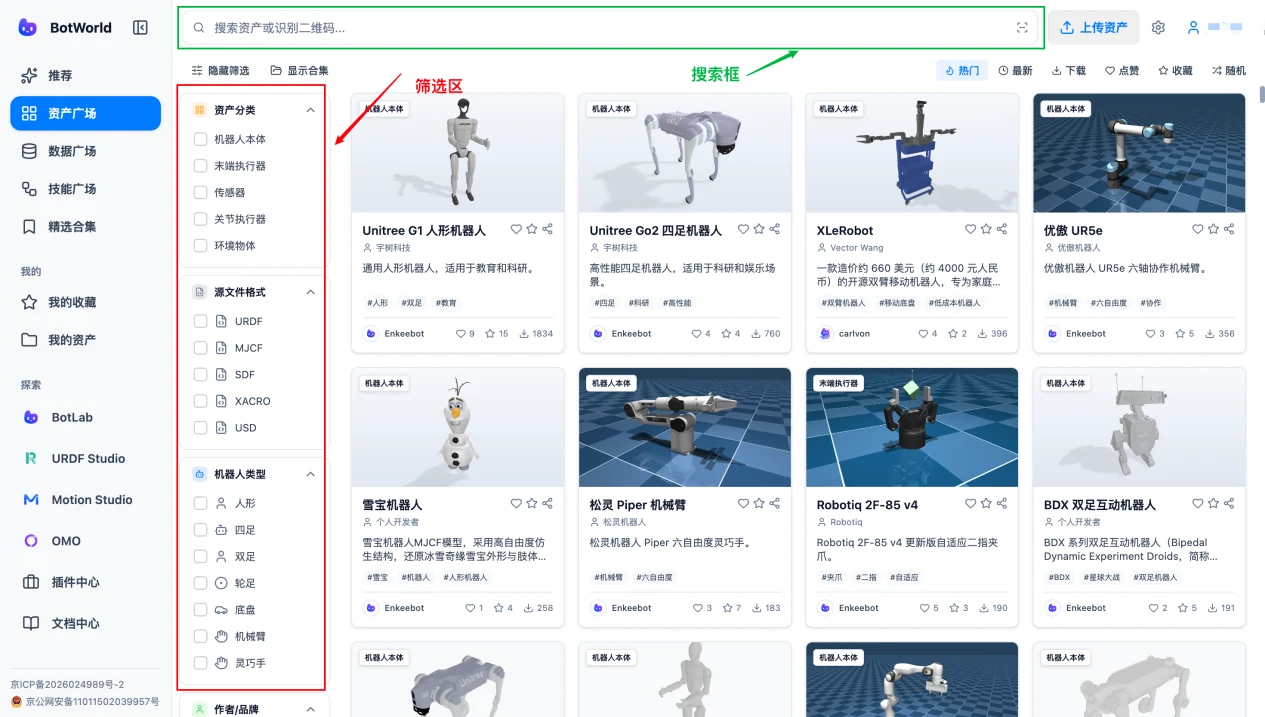
The BotWorld home screen is made of a left sidebar, top search bar, main content area and filter area. The sidebar switches between resource galleries, product entries and feature entries. The top search bar searches across the site. The main content area shows resource cards, detail pages and upload pages. The filter area narrows results by resource type, file format, tag and other conditions.
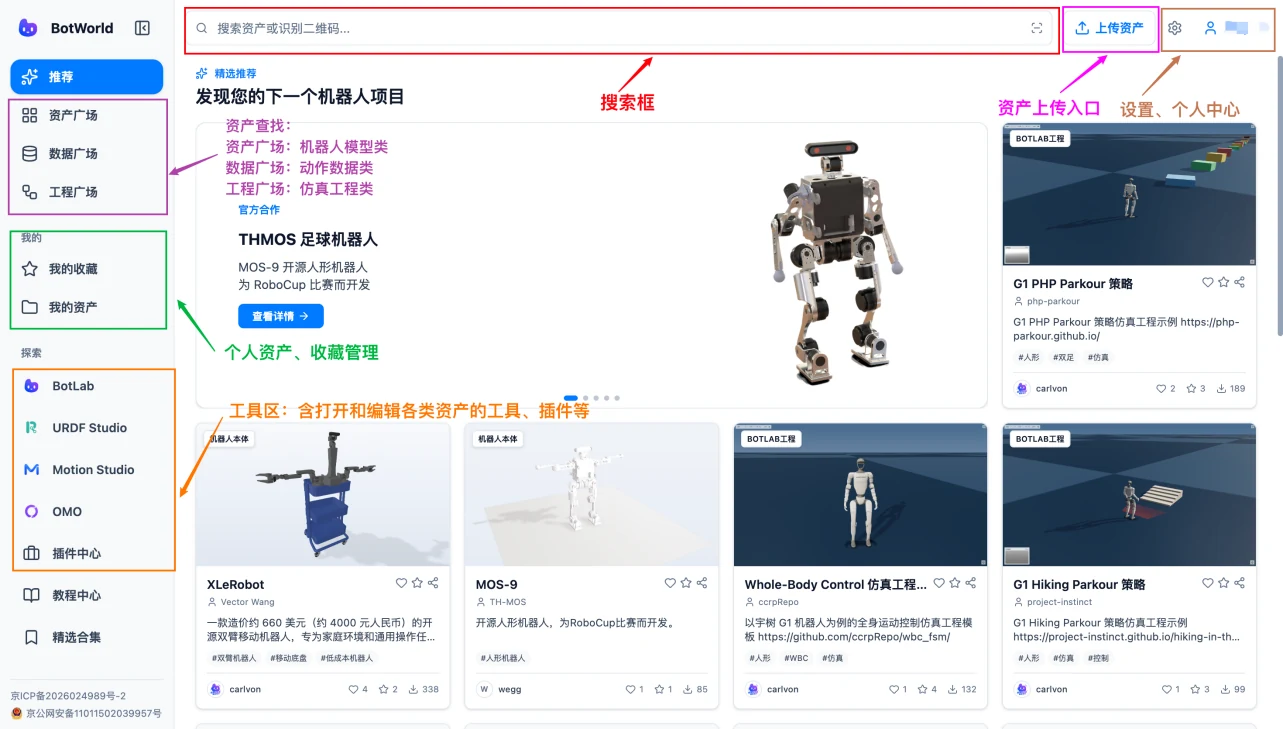
Interface Areas
The top search bar accepts keywords for site-wide resource search. The main content area displays resource cards for the current gallery. After entering an asset gallery, open the filter area to narrow results by resource type, file format and tags.
Sidebar Structure
The left sidebar contains three resource galleries, four product entries and two feature entries. The product guide page also contains the OmO entry.
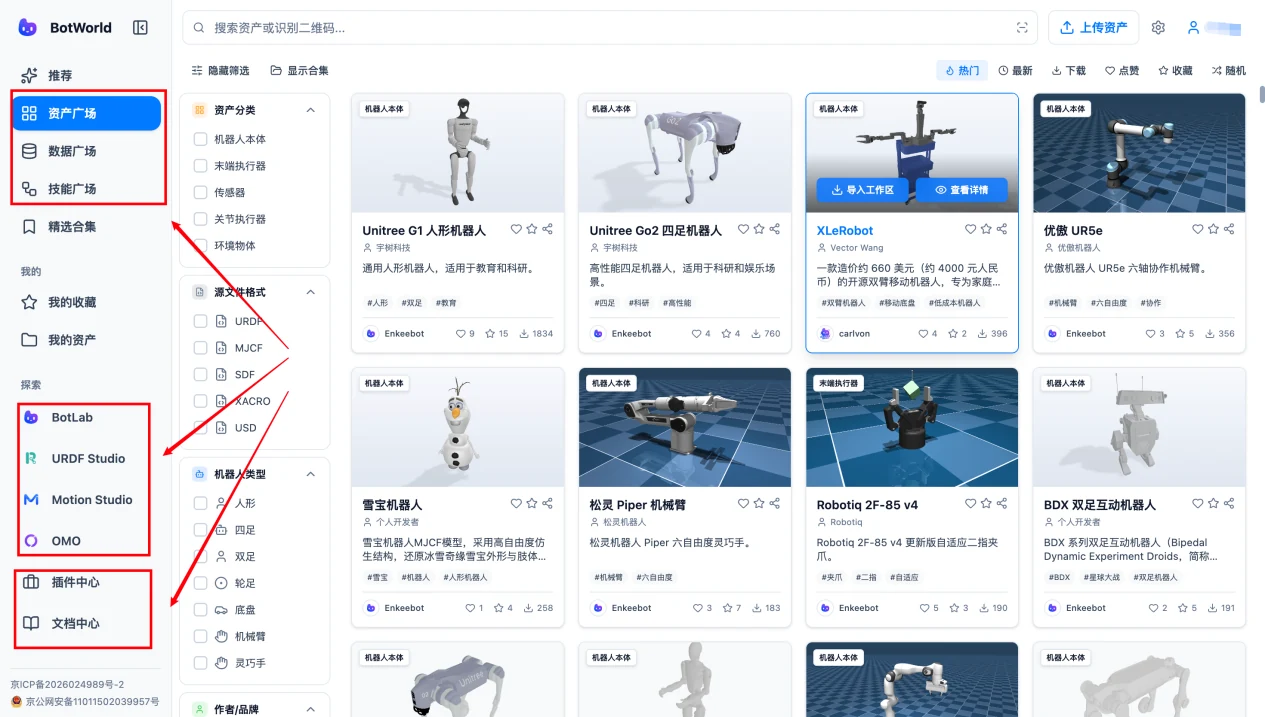
Resource galleries group content by resource type:
| Gallery | Contents |
|---|---|
| Asset Gallery | Robot bodies, end effectors, sensors, joint actuators, environment objects and related assets |
| Data Gallery | Motion data, vision data, semantic data, force and tactile data |
| Project Gallery | Simulation projects, control projects, vision projects and planning projects |
Product entries:
| Product | Role |
|---|---|
| BotWorld | Asset discovery, community interaction and creator services |
| URDF Studio | Robot model viewing, editing and assembly |
| Motion Studio | Robot motion data processing |
| BotLab | Robot simulation validation |
Feature entries:
| Entry | Function |
|---|---|
| Plugin Center | View and launch connected robot development tools |
| Tutorial Center | Read platform tutorials and asset upload guidance |
Find Resources
Search Resources
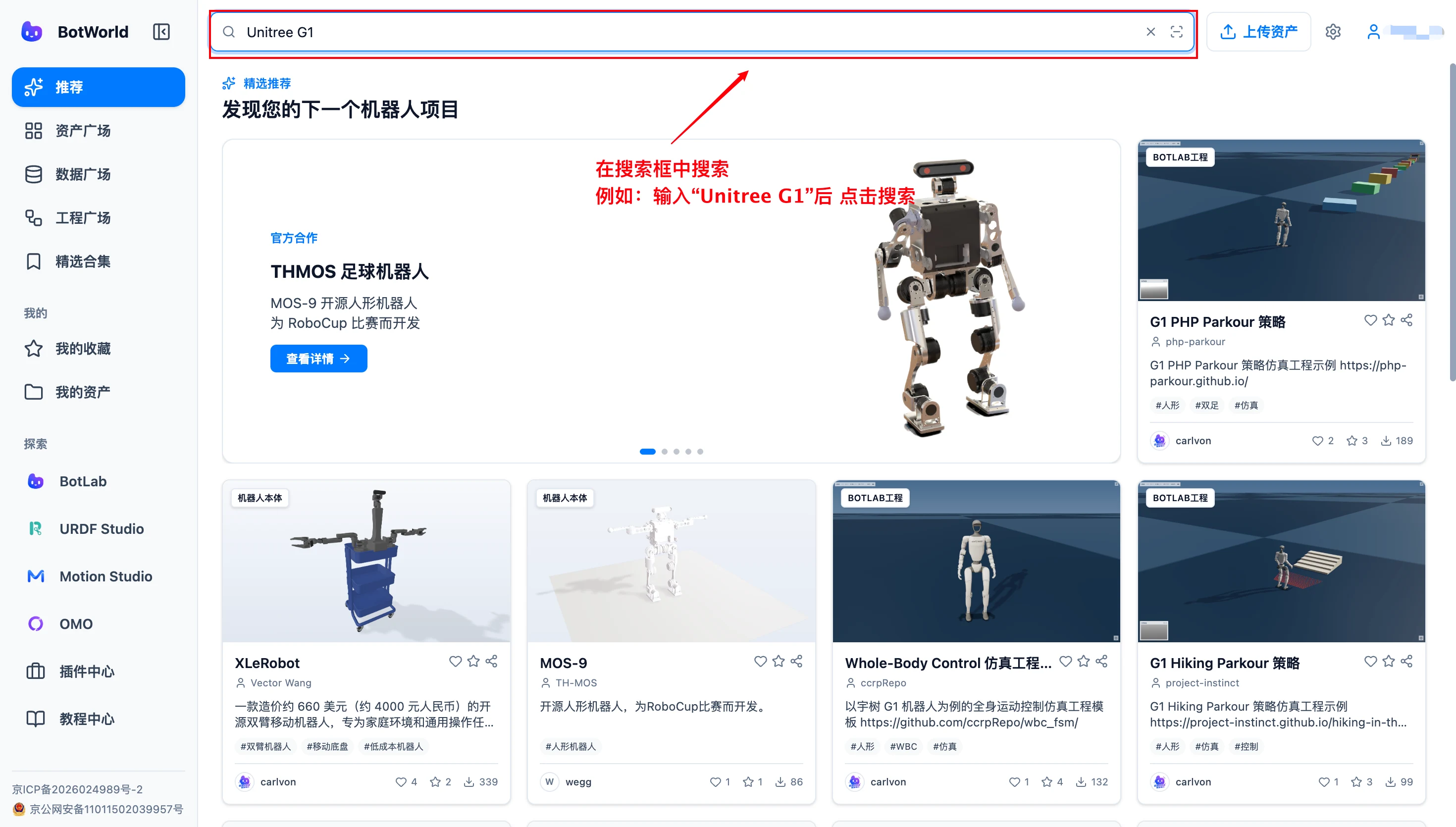
Enter a robot name, resource name or task keyword in the search box, then press Enter. For example, search for Unitree G1.
Common search patterns:
| Search type | Example |
|---|---|
| Robot model | Unitree G1 |
| Robot category | Humanoid robot |
| Component name | Gripper, dexterous hand |
| Task direction | Walking, motion control |
| English keyword | humanoid, gripper |
Filter Resources
After entering an asset gallery, open the filter area to narrow results by resource type, file format, tag and other conditions.
After filtering, click the close icon to remove one condition, or click "Reset filters" to clear all conditions and search again.
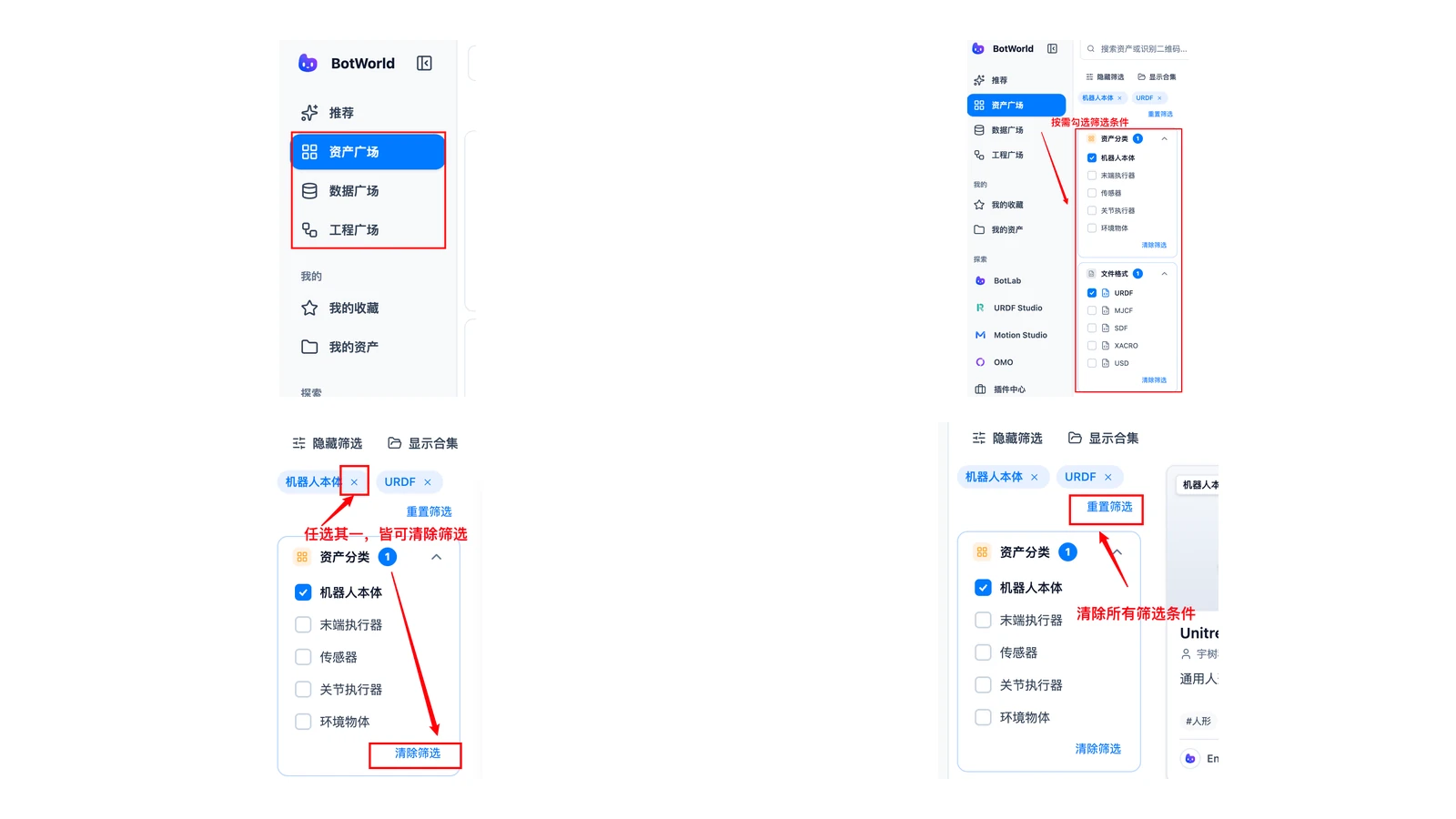
Note: The more filters you apply, the fewer results you will see. If you cannot find a suitable resource, reduce the filters first, then adjust the keyword.
When Search Has No Results
| Situation | What to do |
|---|---|
| Keyword is too long | Shorten it, for example from Unitree G1 humanoid robot to G1 |
| Brand term affects results | Remove the brand name and keep the model name |
| Chinese and English names differ | Try both Chinese and English keywords |
| Category is uncertain | Enter the matching gallery and browse by category |
Get Resources
Browse Resource Cards
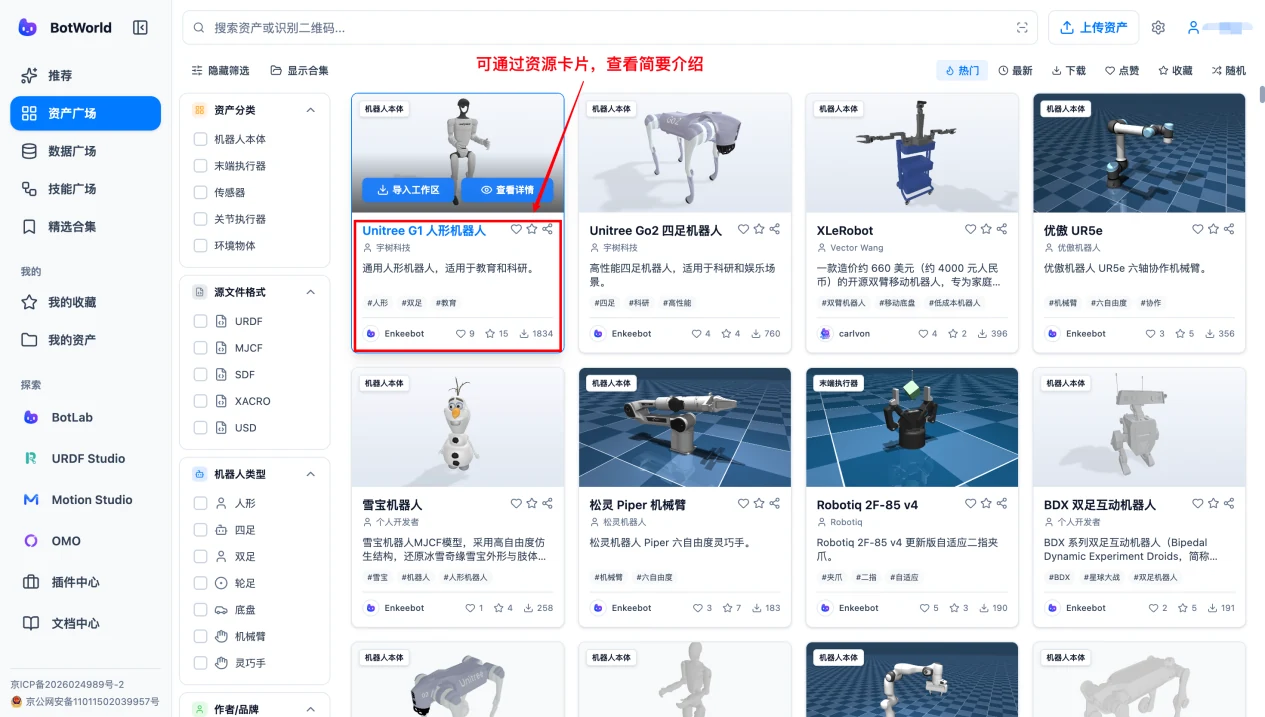
Resource cards in galleries and search results show basic information:
| Item | Meaning |
|---|---|
| Cover | Resource thumbnail |
| Name | Resource title |
| Type | Category such as robot body or motion data |
| Creator | Uploader of the resource |
| Interaction data | Likes, favorites and downloads |
Cards are useful for quick browsing. Before using a resource, open the detail page to confirm file formats, version and usage notes.
View Resource Details
Click "View details" on a resource card to open its detail page.
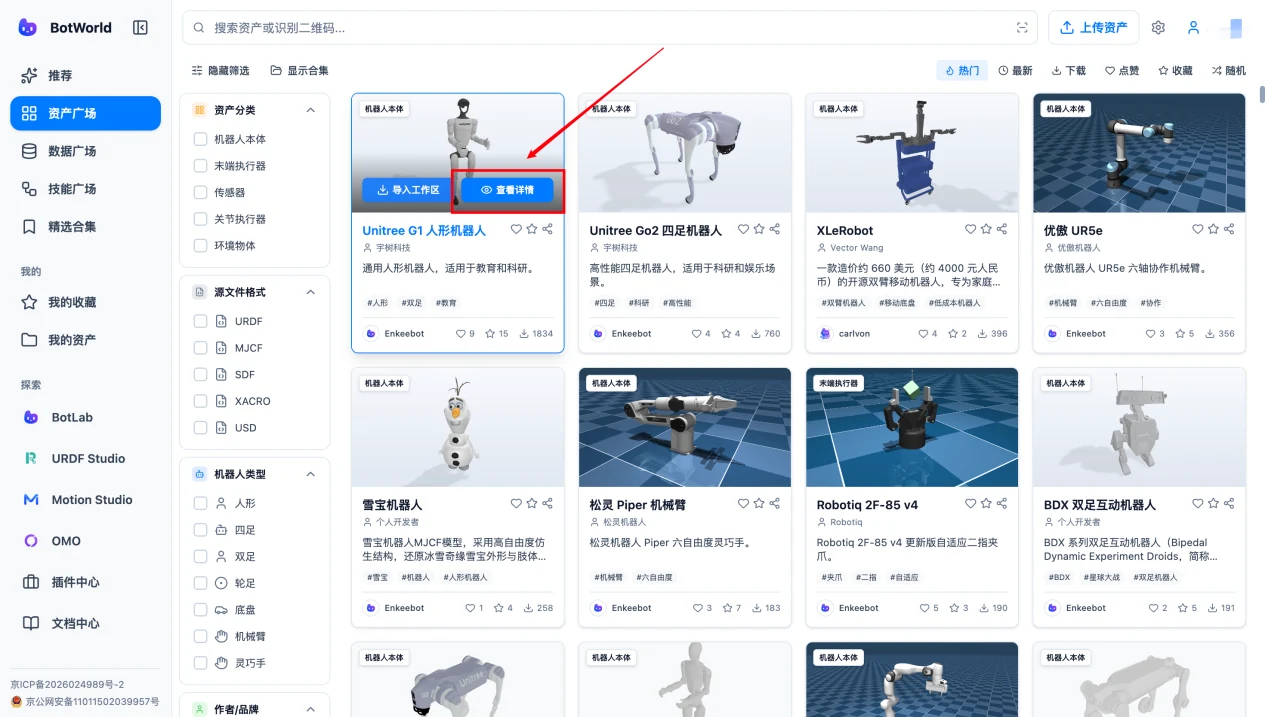
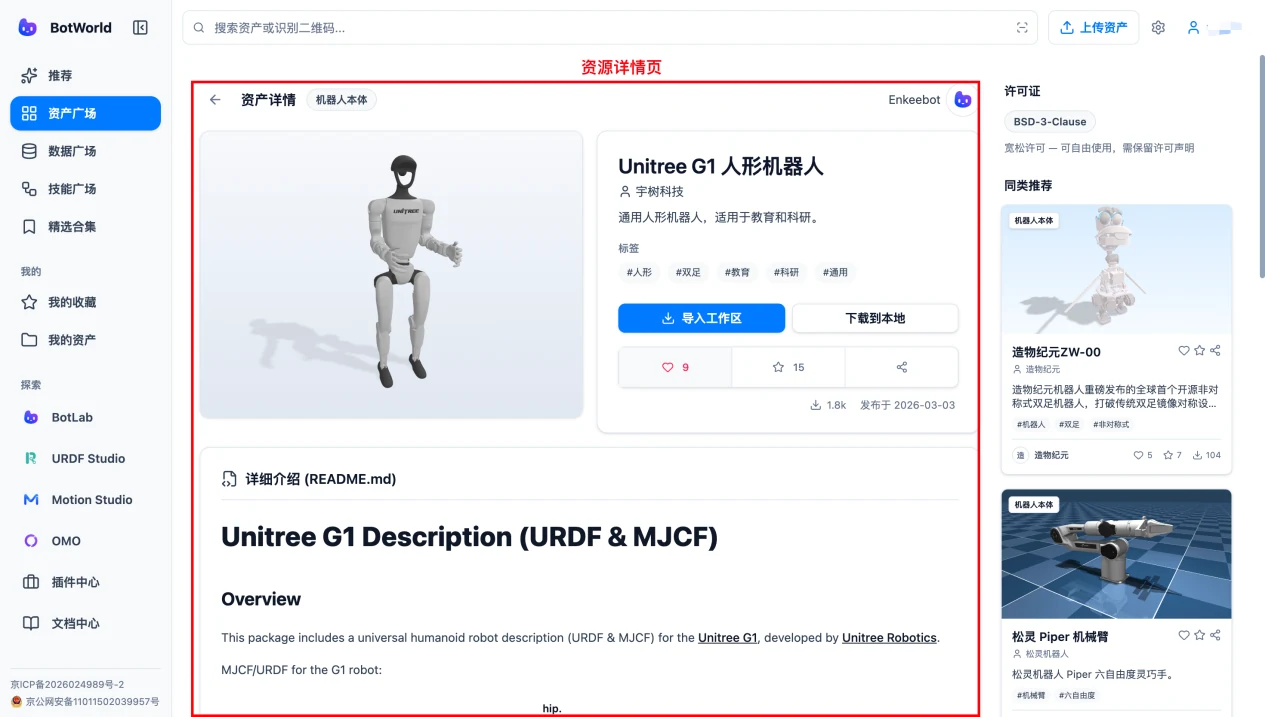
The detail page shows the resource introduction, online preview, file formats, tags, version, update time, creator information, usage notes and action entries.
Before using a model, check:
- Whether it includes a complete description file, such as URDF, MJCF or SDF.
- Whether referenced assets such as
meshesandimagesare included. - Whether the file format matches the next tool.
- Whether version and usage notes are provided.
- Whether the asset can be imported directly into URDF Studio.
- Whether source or license information is provided.
Download Locally
On the resource detail page, click "Download", choose the content and local save location as prompted, then check the downloaded files after completion.
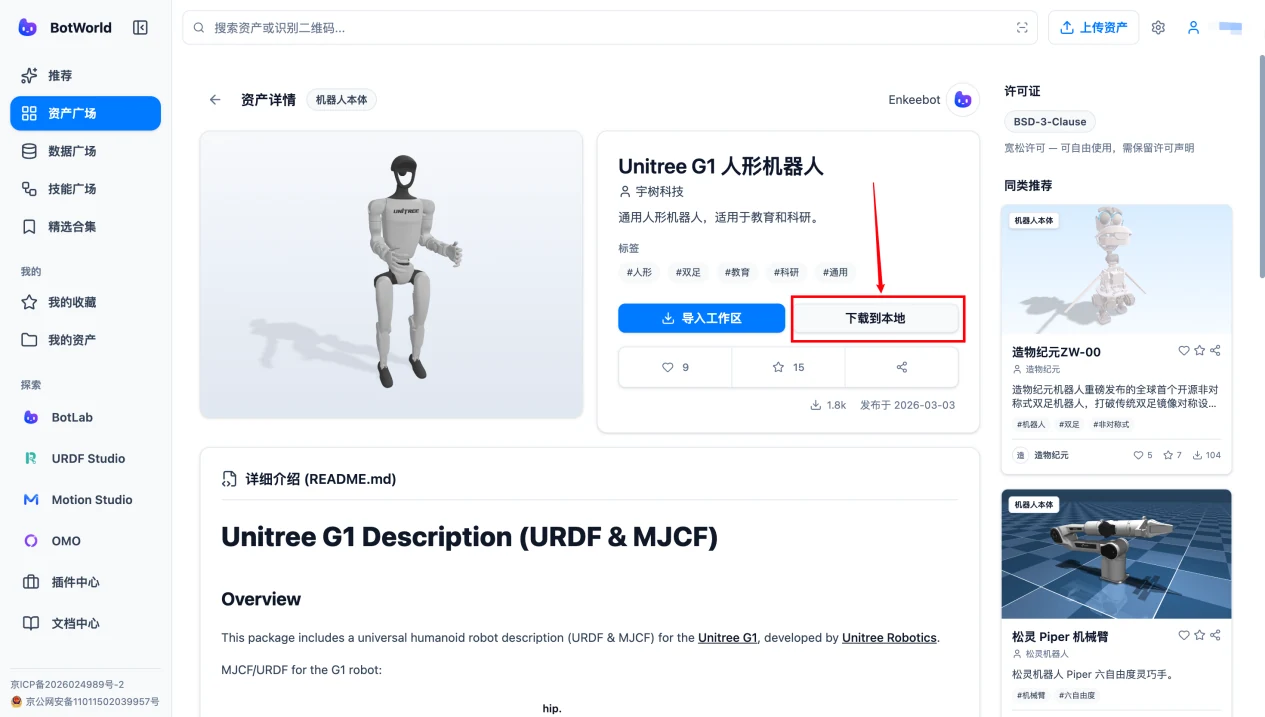
Note: Keep the complete directory structure after downloading. Do not delete referenced files such as meshes or images; otherwise parts or materials may be missing.
Import Into Professional Tools
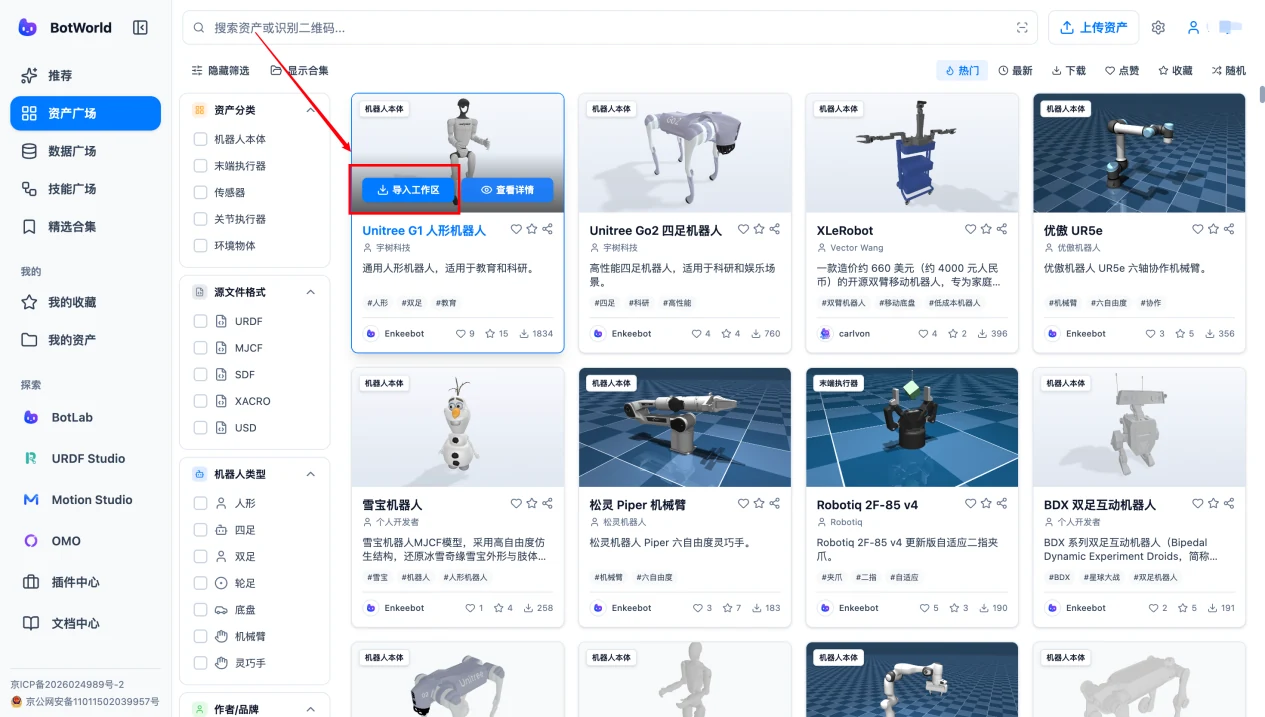
Different resource types can be imported into matching tools for further work. Click "Import to workspace" on the resource detail page.
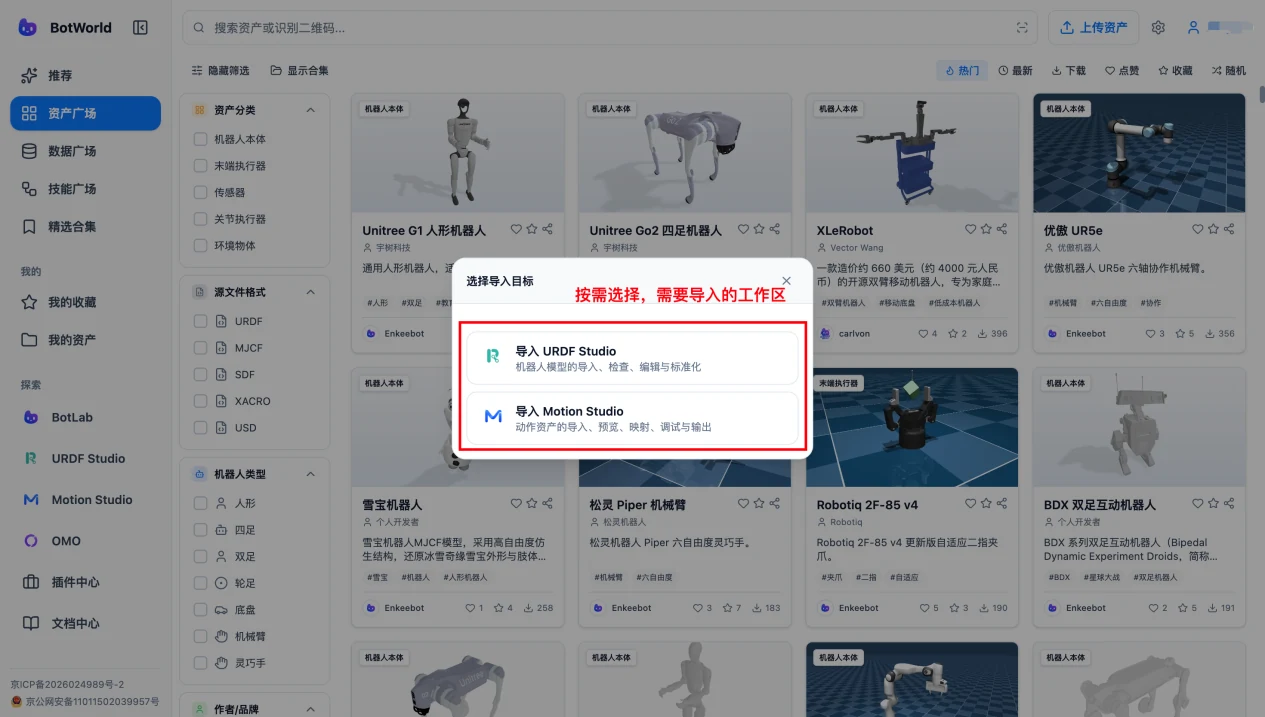
Choose the target workspace by resource type, then continue in the corresponding tool.
| Resource type | Target tool | Path | What you can do after import |
|---|---|---|---|
| Robot model | URDF Studio | Detail page -> Import to workspace -> Import into URDF Studio | View, edit and assemble models |
| Motion data | Motion Studio | Detail page -> Import to workspace -> Import into Motion Studio | Process and generate motion data |
| BotLab project | BotLab | Detail page -> Import to workspace | Run, debug and validate |
| Tool plugin | Plugin Center | Launch directly from Plugin Center | Use online development tools |
After import, check whether the asset library contains complete files, the structure tree is generated correctly, the 3D model is fully displayed, and the page shows no missing-resource or format errors.
If the model keeps loading for a long time, refresh the page and import from BotWorld again. If it still cannot be imported, download the resource package locally and import it from local files.
Interaction Features
Like, Favorite and Share
Like and favorite actions are available on resource cards or detail pages. Click Like again to cancel it. After favoriting a resource, confirm it under "Me -> My Favorites". Click Share to open the share dialog, then copy the link or generate a share card as needed.
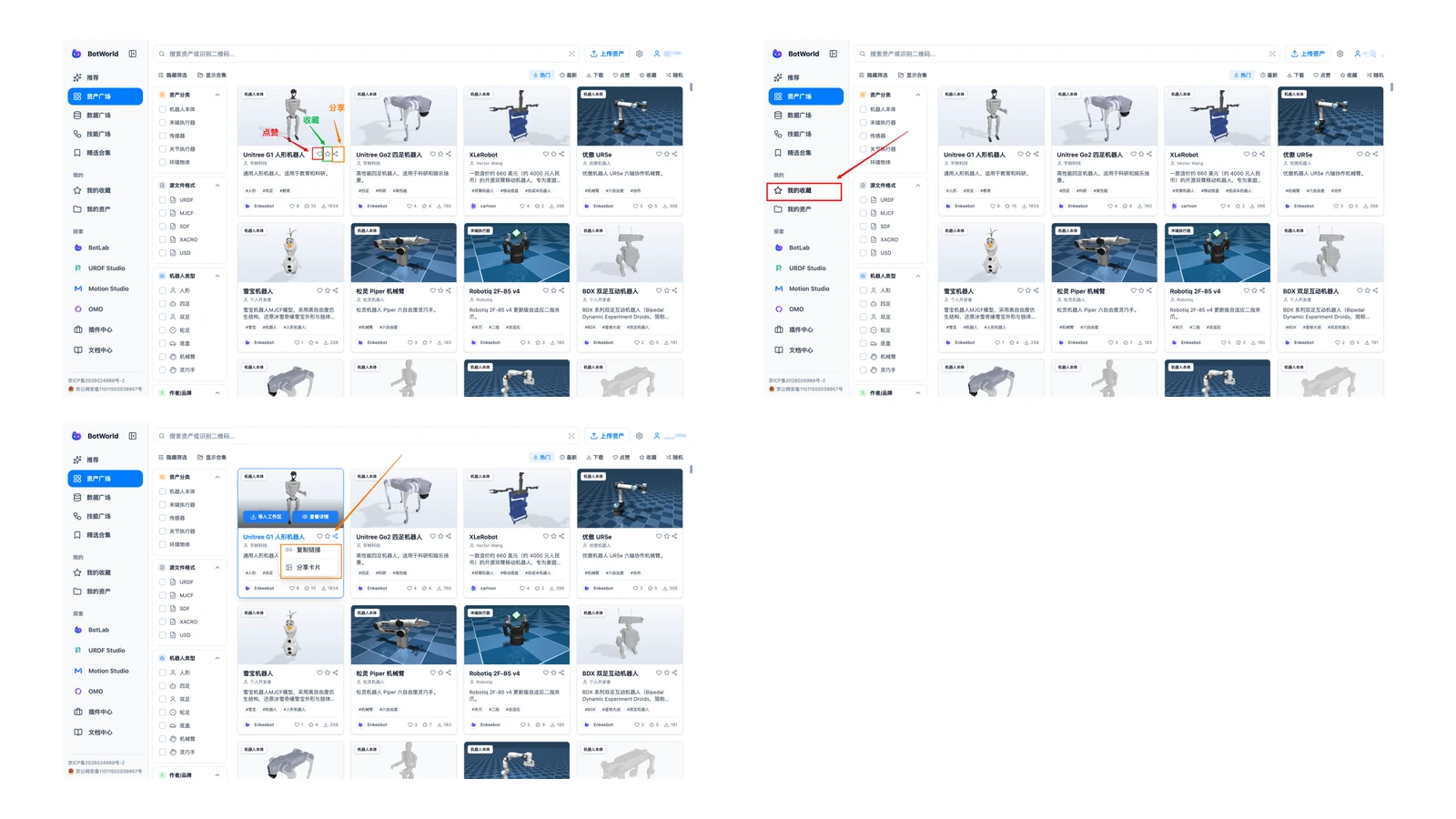
BotWorld supports online sharing and complete local package transfer.
| Method | Steps | Use case |
|---|---|---|
| Copy link | Detail page -> Share -> Copy link | Chat tools, forums, email |
| Share card | Share -> Generate card -> Save image | Social media, with QR code |
| Local files | Download the complete package, then send it | File transfer |
Note: When sharing a local model, keep the original directory structure and include the description file, meshes, textures and documentation.
Profile Page
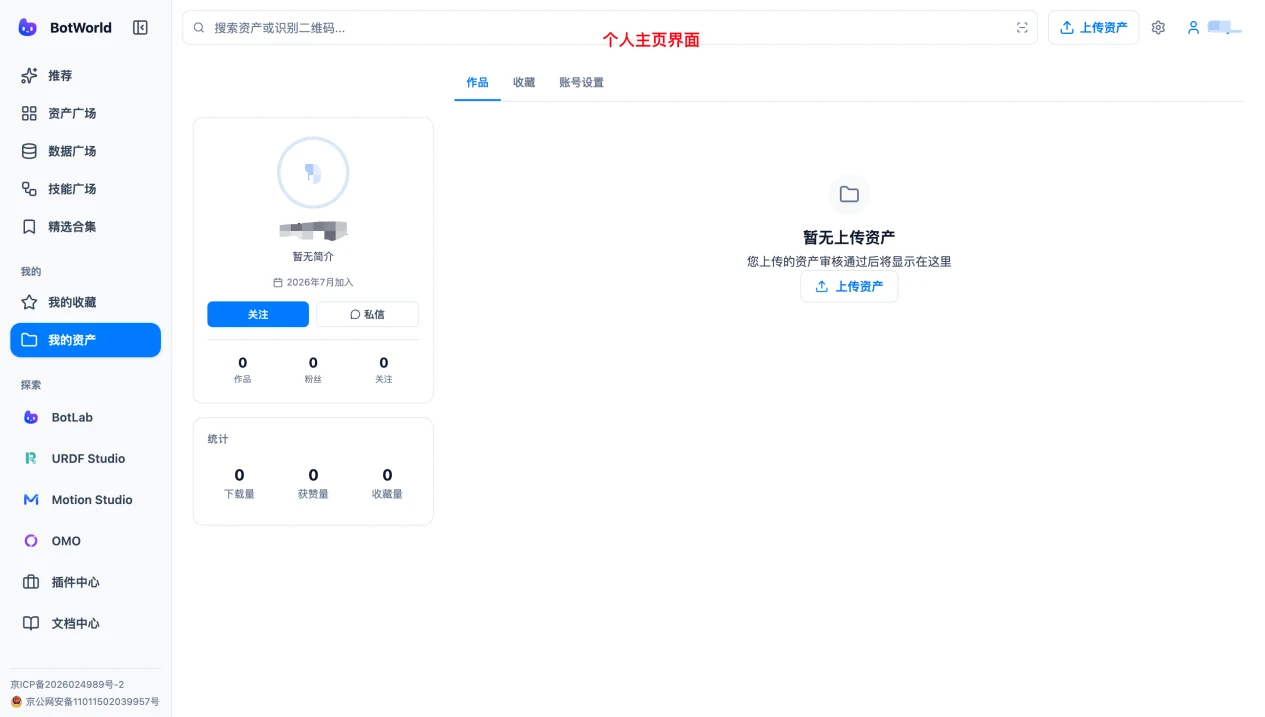
Click the rightmost icon in the top bar to open your profile page.
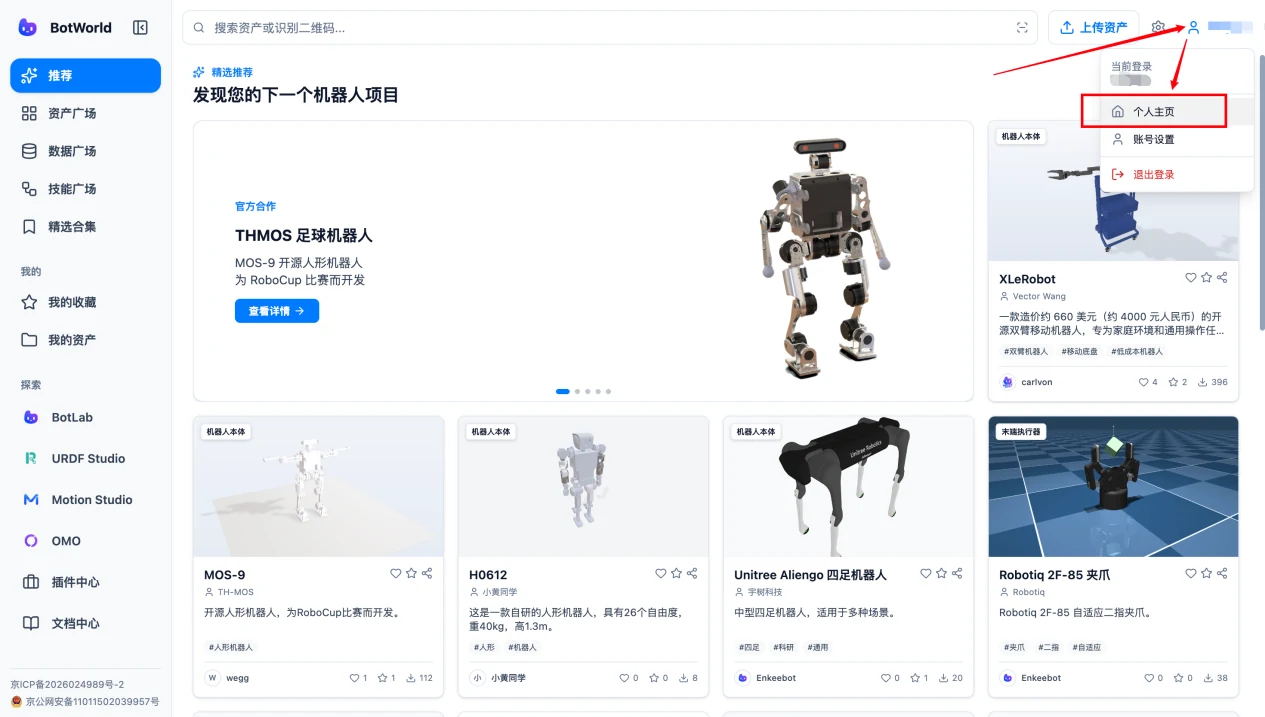
The profile page shows personal information, uploaded assets and favorited works.
Publish Work
Upload Guide
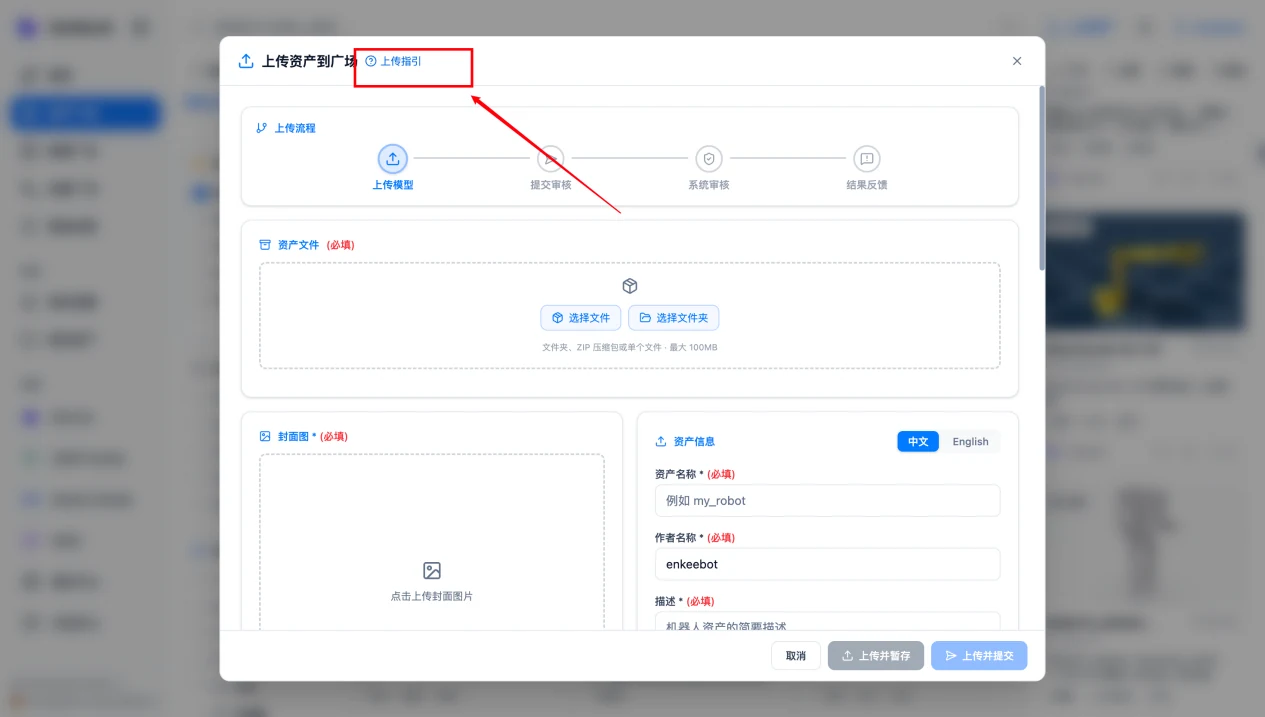
For your first submission, click "Upload asset" to open the upload guide, then follow the page prompts to prepare and submit the resource. For later uploads, you can open the guide again from the asset submission page.
Prepare Before Publishing
Before publishing, check each item to avoid review rejections:
- Complete resource files, including the description file,
meshesandimages. - A clear resource name that includes robot or component information.
- A concise introduction explaining what the resource is, what it includes, what it is suitable for and any limitations.
- A cover image or model snapshot.
- Version information and source notes.
Folder Structure and Naming
Recommended folder structure:
unitree_g1/
├── g1.urdf
├── meshes/
├── images/
└── README
Names should be concise and clear enough to identify the robot, component and version.
| Recommended | Avoid |
|---|---|
unitree_g1_urdf_v1 | new file |
g1_collision_optimized_v2 | final2 |
six_axis_arm_with_gripper | untitled folder |
Upload Steps
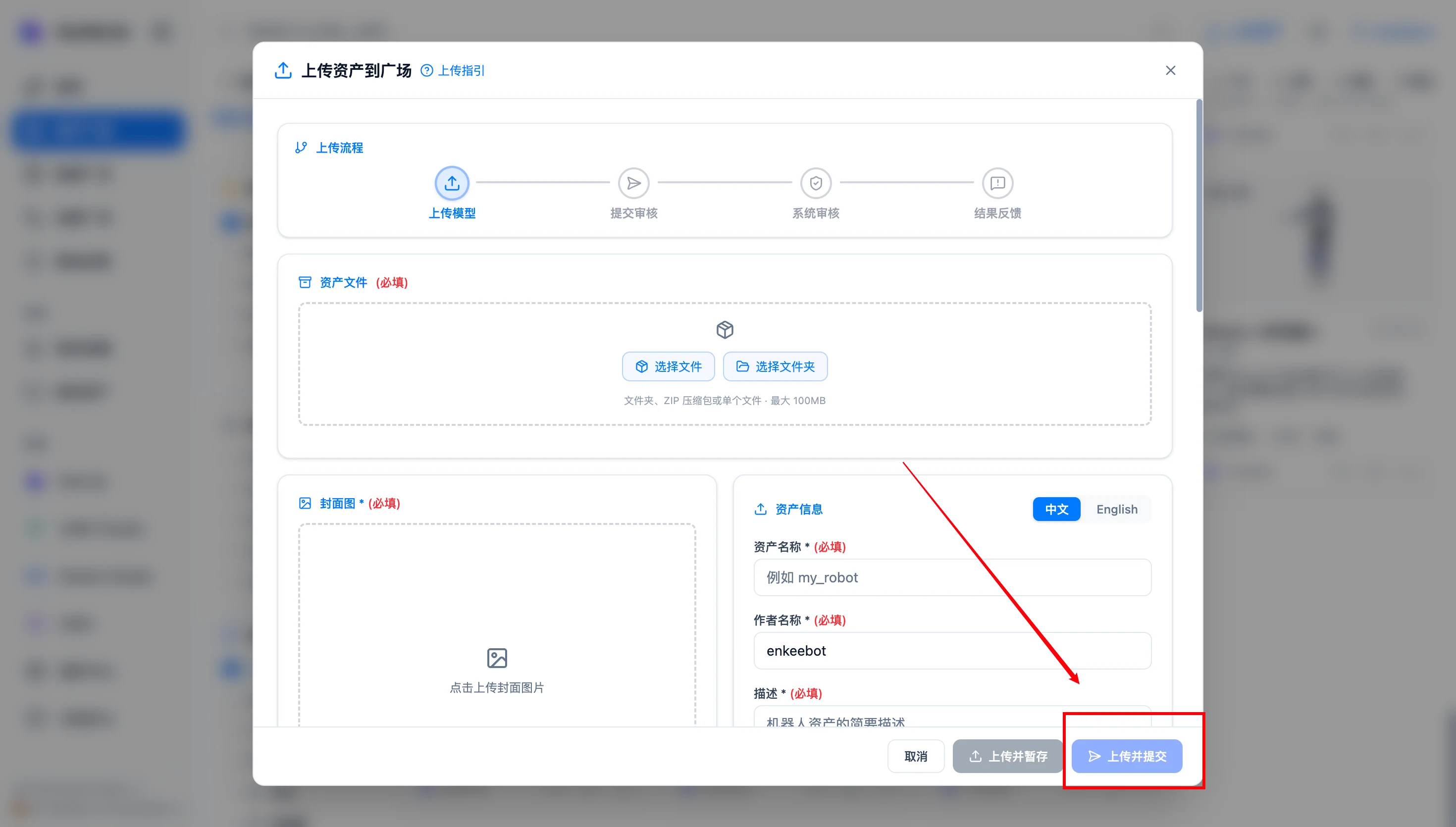
After signing in, click "Upload resource" in the top bar to enter the upload workflow.
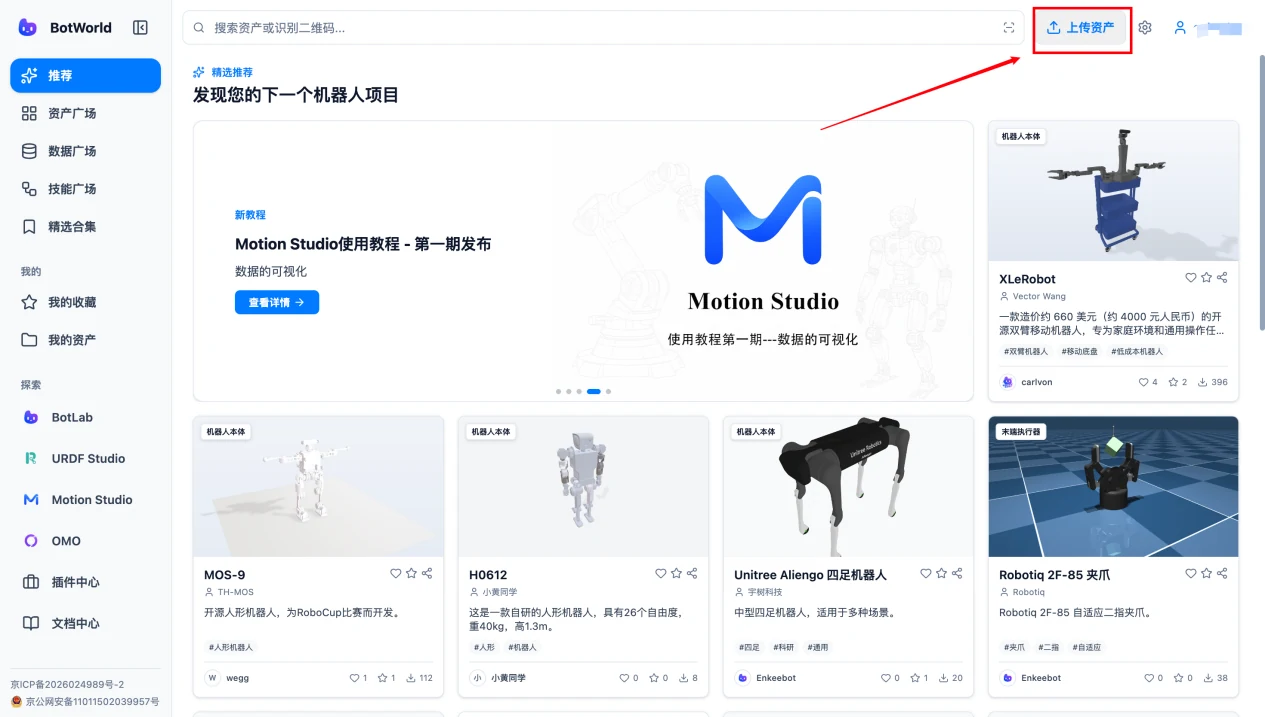
Select the upload type and fill in the required information. On first upload, the upload guide appears automatically; after watching it, click "Skip" to enter the information form.
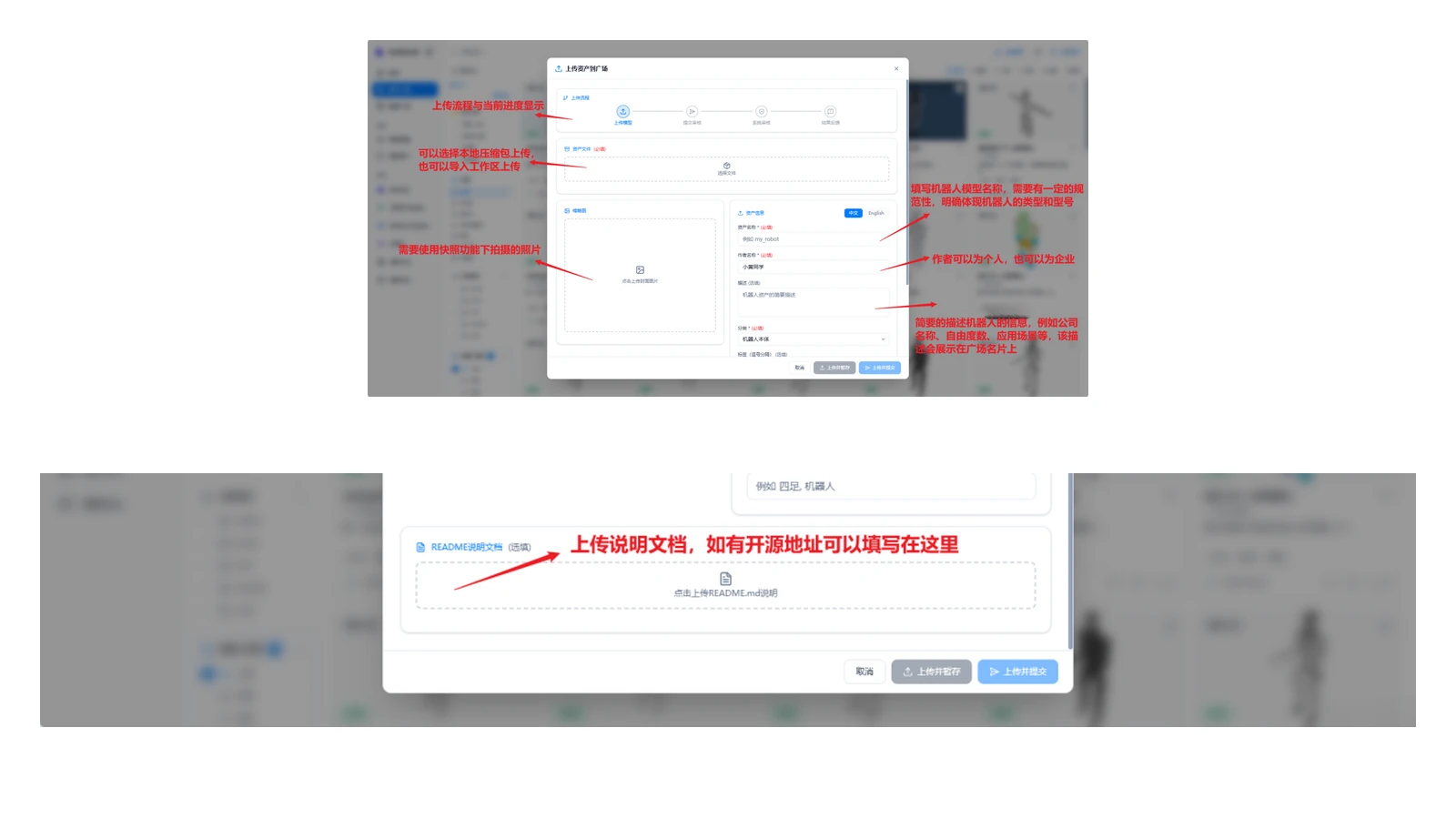
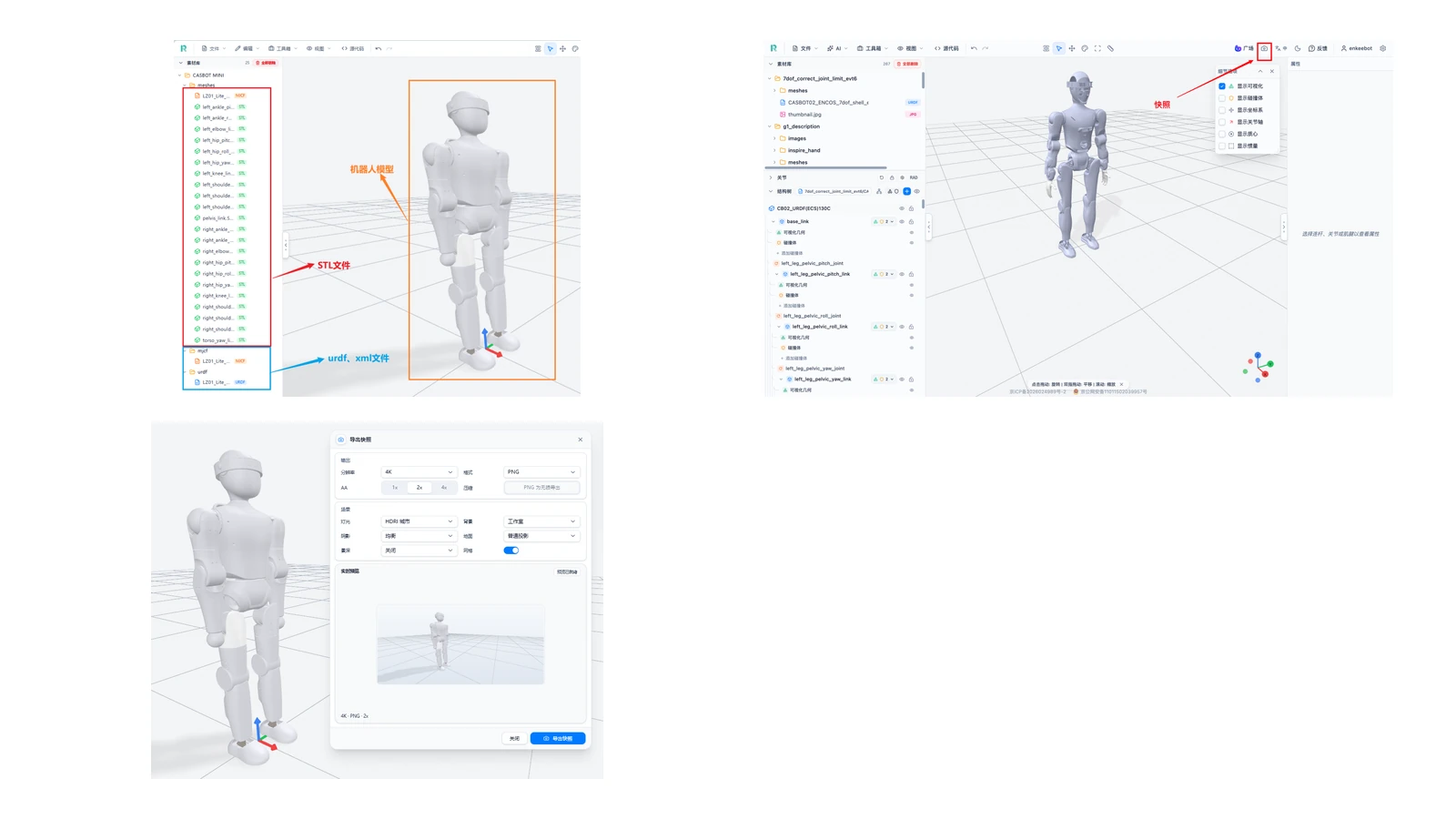
Uploaded model files must include a description file, such as URDF, XML or USD, and the corresponding STL files.
If you have a README or other documentation, fill it in or upload it in the documentation area.
Prepare a Cover Image
If you do not have a cover image, import the model into the workspace and use the snapshot feature to capture one. Adjust the model angle and position so the model is centered and fills the frame. Open snapshot settings, choose a suitable size and format, then export the image locally.
Continue filling in the asset upload form. After confirming that the information is correct, submit it.
Review State and Edits
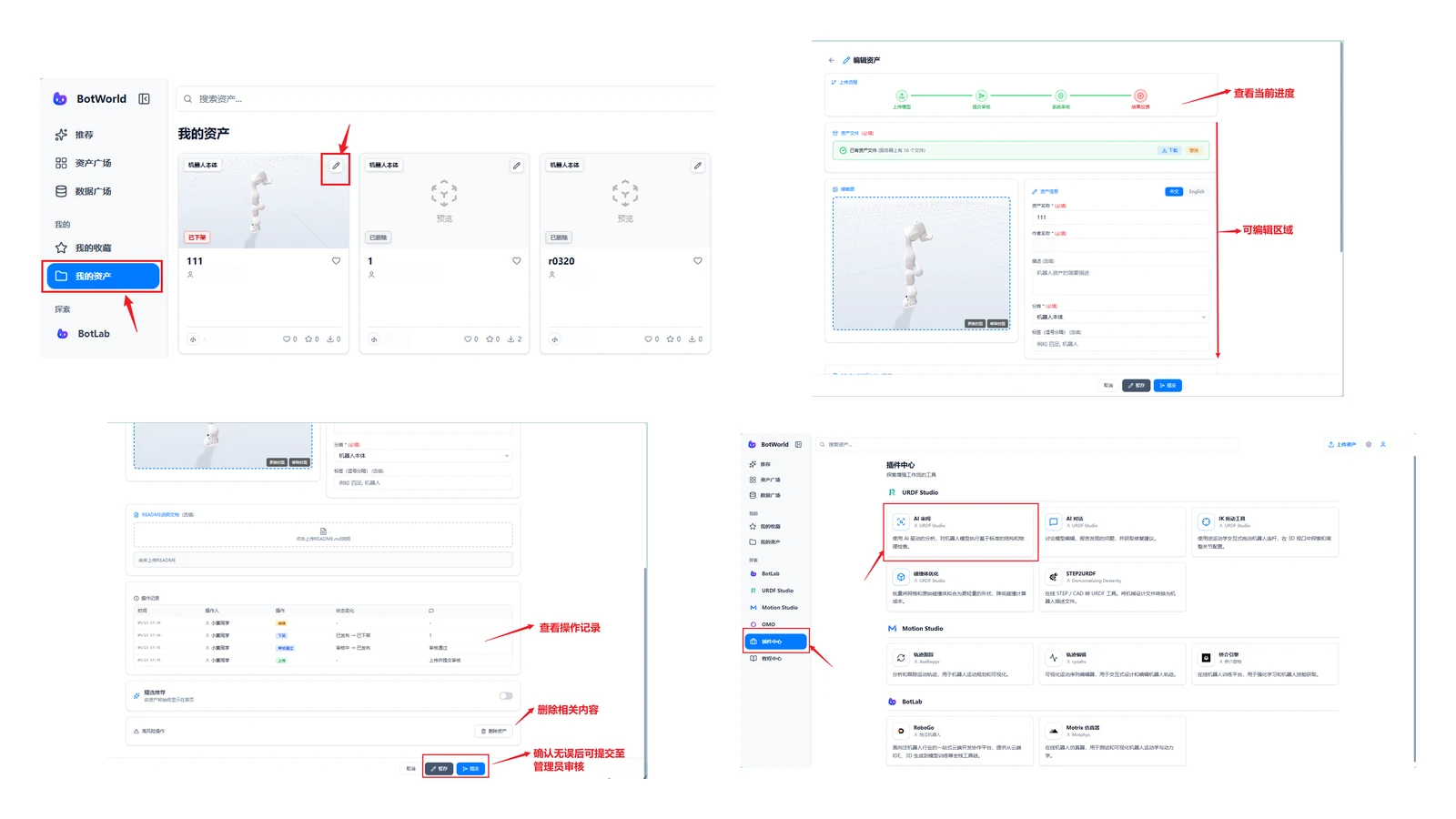
After upload, open "Me -> Assets" to view draft or uploaded assets, then click the edit button in the upper-right corner of the card to edit.
The edit page shows current review progress and editable areas.
After making changes, confirm the content and submit it for review.
Use AI review to check whether the asset content is complete.
| State | Meaning |
|---|---|
| Pending review | Submitted and waiting for processing |
| In review | Currently being reviewed |
| Approved | Ready to appear in the gallery |
| Changes required | Revise according to feedback and submit again |
| Published | Visible in the gallery |
| Taken down | Removed from the gallery |
| Deleted | Asset has been deleted |
Use "My Assets" to check review progress and revision comments. To update a resource, go to "My Assets", find the target resource, click "Edit", modify files or descriptions, then submit again.
After changing files, remember to update the version number, update time, change notes, usage notes and known limitations.
FAQ
| Question | Answer |
|---|---|
| How is BotWorld related to the other products? | The five products belong to the same platform. They can be used independently or connected around robot assets. BotWorld is the entry point, URDF Studio handles models, Motion Studio handles motion, BotLab handles simulation and OmO handles physical deployment. |
| Which product should I start with? | Start in BotWorld to find resources. Use URDF Studio for model editing, Motion Studio for motion processing and BotLab for simulation. |
| What if search returns no results? | Shorten the keyword, remove the brand name, try both Chinese and English terms, or browse by gallery category. |
| What if filters return no resources? | More filters mean fewer results. Reduce conditions or click "Reset filters", then adjust the keyword. |
| What if a downloaded model is incomplete? | Keep the complete directory structure. Do not delete referenced files such as meshes and images. |
| What if nothing happens after importing into URDF Studio? | Confirm that you are signed in and check whether the browser blocked a new page. If it still cannot open, download the package and import it locally. |
| How do I share a resource? | Copy the link, generate a share card, or download the complete resource package and send it offline. |
| How do I submit my own work? | Sign in, open "My Assets", click "Submit resource", select a type, upload files, fill in the information and submit for review. |
| What if review fails? | Check comments in "My Assets", revise according to feedback and submit again. |
| Can I update a published resource? | Yes. Edit and submit the updated version for review. Remember to update the version number and change notes. |
| What is a verified creator? | A creator verified by the platform. The profile shows a verification badge. The badge helps identify the source, but you should still inspect the files before use. |
| How long does review take? | Check the review state in "My Assets". When it becomes "Published", the asset is visible in the gallery. |
Glossary
| Term | Meaning |
|---|---|
| URDF | Universal Robot Description Format, a standard format for robot structure, joints and appearance |
| MJCF | Robot description format used by the MuJoCo simulation engine |
| SDF | Simulation Description Format used by Gazebo simulation environments |
| meshes | Mesh files defining 3D geometry for robot parts |
| Asset Gallery | Stores robot bodies, components, sensors and environment models |
| Data Gallery | Stores motion, vision, semantic, force and tactile data |
| Project Gallery | Stores simulation, control, vision and planning projects |
| Import to workspace | Button on the resource detail page that opens the matching professional tool and loads the resource |
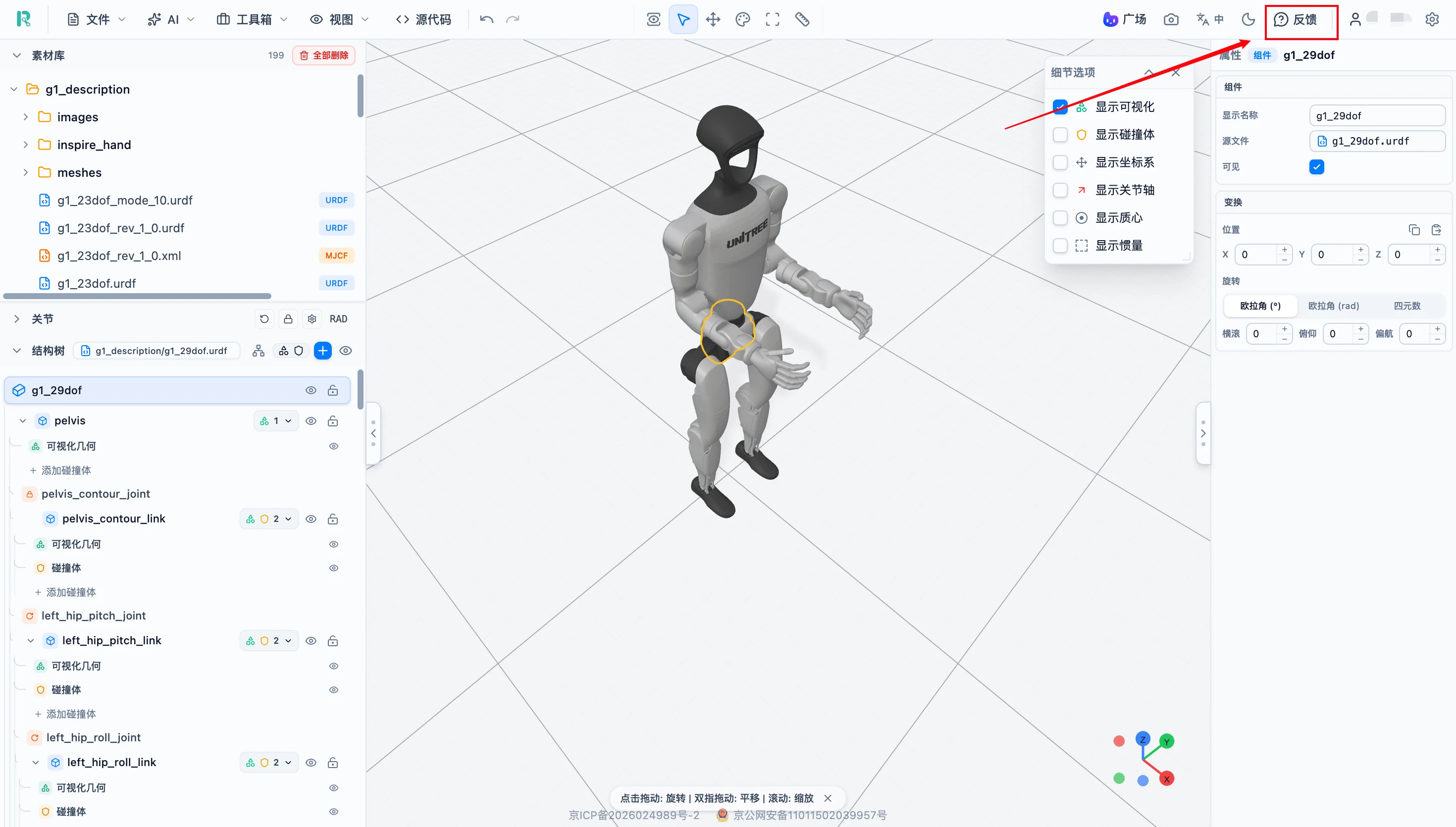
If you cannot solve an issue, submit feedback or leave a message in official BotWorld accounts on WeChat, Bilibili or Xiaohongshu. The official account name is "BotWorld".
Last updated: August 13, 2026.