Quickstart: one full pass over a robot model
This chapter is for anyone who wants to get hands-on with the platform straight away.
Using the Unitree G1 humanoid as the example, you will walk the most basic path through the platform:
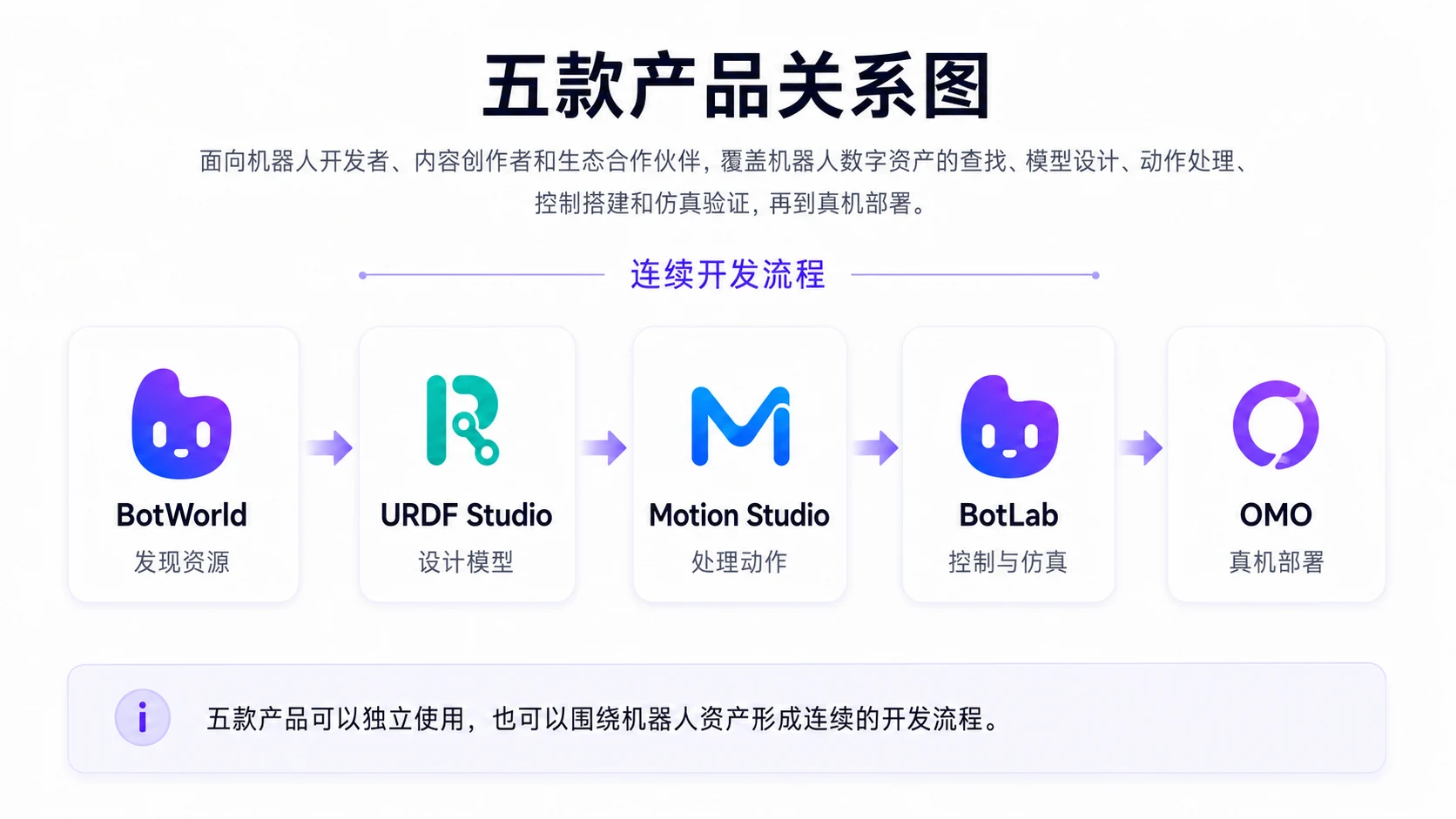
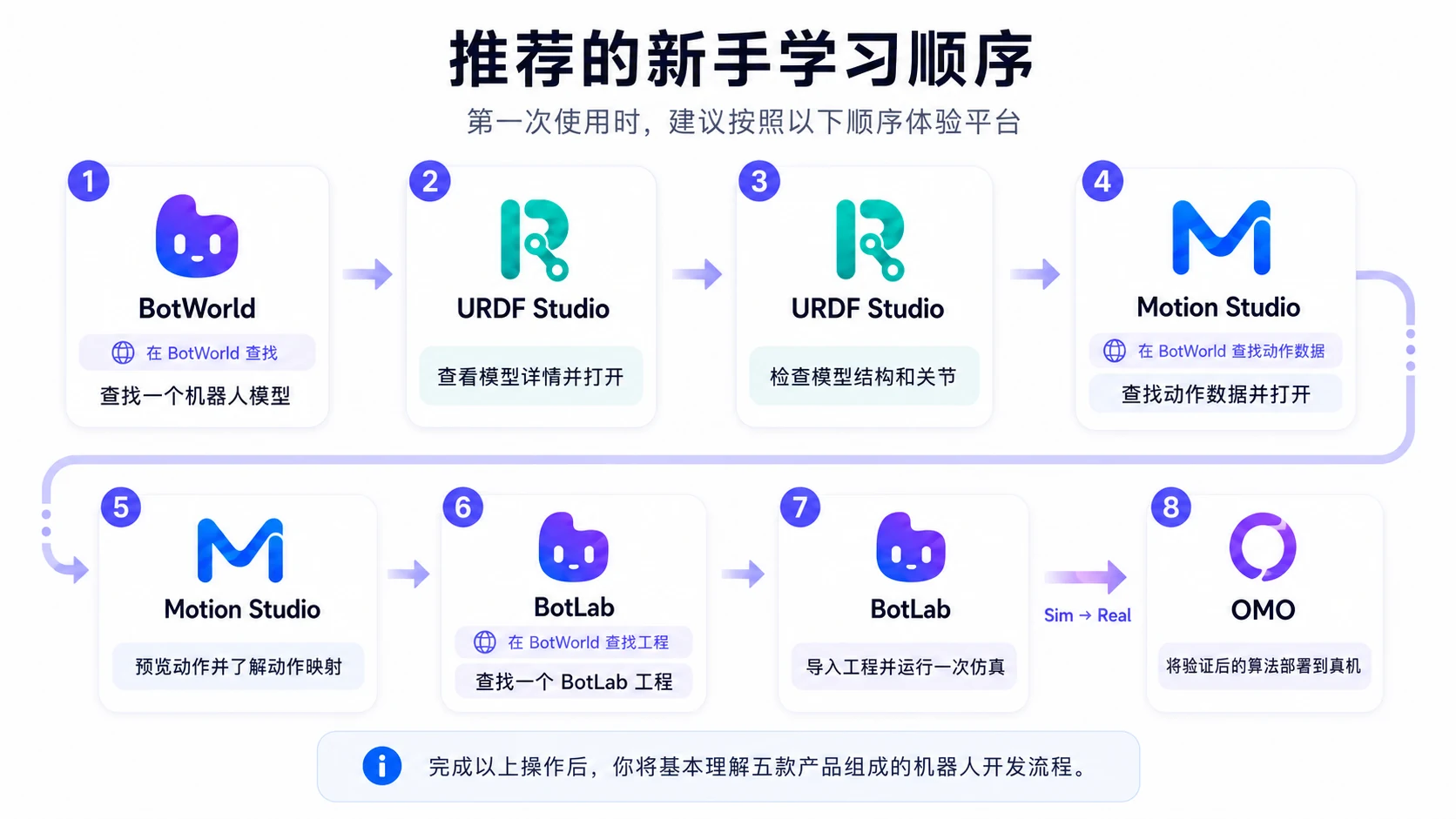
Find a robot model (BotWorld) → Open its asset detail page (BotWorld) → Import the model (URDF Studio) → View and edit it (URDF Studio) → Export the model files
What you will learn:
- How to find a robot model in BotWorld.
- How to read a robot asset's detail page.
- How to import a model into URDF Studio.
- How to view, edit and export a model in URDF Studio.
The walkthrough is split in two:
- BotWorld quickstart — sign in, find a robot model, read the asset detail page.
- URDF Studio quickstart — import the model, view it, make a simple edit, export it.
BotWorld quickstart
This section uses the Unitree G1 humanoid as its example and walks the shortest path to finding an asset in BotWorld:
Sign in → Find a robot model → Read the asset detail page
Sign in
Open BotWorld and click Sign in in the top-right corner of the page.

Sign in to your account. If you do not have one yet, follow the prompts to register first.

Once signed in you can use collections, submit your own work, and manage personal assets.


Find an asset in BotWorld
Option one: browse by asset type
In the left sidebar, open the Asset Gallery, Data Gallery or Project Gallery depending on the type of resource you need.

Use the filters to narrow the results.

Option two: search directly
Type a robot name, asset name or task keyword into the search box — for example Unitree G1.

Find the asset you want in the results and click View details on its card.

Read the asset detail page
The detail page shows you:
- The asset's name and description.
- A preview of the robot model.
- File formats and asset information.
- Creator information.
- Download and import-to-workspace actions.
Once you have confirmed the asset suits your needs, you can download it locally or import it straight into URDF Studio.

You are done when
You have finished the BotWorld introduction once you can:
- Sign in to BotWorld.
- Find the Unitree G1 in the Asset Gallery.
- Locate a robot model using search or filters.
- Open that model's asset detail page.
URDF Studio quickstart
This section continues with the Unitree G1 humanoid and walks the shortest path to working on a model in URDF Studio:
Import from BotWorld → View the model → Make a simple edit → Export the model
Only the basic flow is covered here. Structural design, collision tuning and multi-component assembly are covered in later chapters.
Import the model into URDF Studio
On the Unitree G1 detail page or asset card in BotWorld, click Import to workspace.

The page redirects to URDF Studio. Wait for the robot files and related resources to finish loading.

If loading does not complete after a while, refresh the page and run the import from BotWorld again.
View the robot model
Once loading finishes, URDF Studio shows the robot's structure and its 3D model.
You can:
- Browse the robot's links and joints in the structure tree.
- Click a part in the structure tree to locate it in the 3D view.
- Drag with the mouse to orbit the camera.
- Scroll to zoom in and out.
- Check whether the overall structure is complete.

Make a simple edit
Select the link or joint you want to change, then review its parameters in the properties area.
Depending on what you need, you can:
- View or change a part's position.
- View or change a part's rotation.
- Check a joint's parent/child relationship.
- Check a joint's type and range of motion.
- Adjust the model's geometric or structural parameters.

Changes are reflected in the 3D view as you make them.
Export the robot model
When you have finished editing, click Export.

Choose the file format you need for the next step in your workflow.

A progress bar appears while the export runs.

Confirm the contents and file name, pick a local folder in the system save dialog, and click Save.

Once the export finishes, check that the files have appeared in your local folder.
Note: this version does not support saving online yet. After any significant change, export the model or project to your machine promptly so your edits are not lost.
You are done when
You have finished the URDF Studio introduction once you can:
- Import a model from BotWorld into URDF Studio.
- View the robot model and its structure tree in URDF Studio.
- View or modify one link or joint.
- Export the edited model to your machine.
You can also import a local robot model directly into URDF Studio and view, edit and export it there.