
Motion Studio quickstart
Motion Studio is an online workspace for robot motion production and motion-capture data processing. Users can import motion, preview it in 3D, retarget human motion to robots, edit poses, review data evaluation and export results in one interface.
On your first pass, complete the basic flow before adjusting complex parameters. After you confirm that import, playback and export work correctly, continue learning mapping, pose editing and data evaluation.
This section uses Unitree G1 and a backflip motion as the example and walks through the shortest path: “enter the workspace -> preview motion -> run human-to-robot retargeting -> inspect and edit on the timeline -> export locally.”
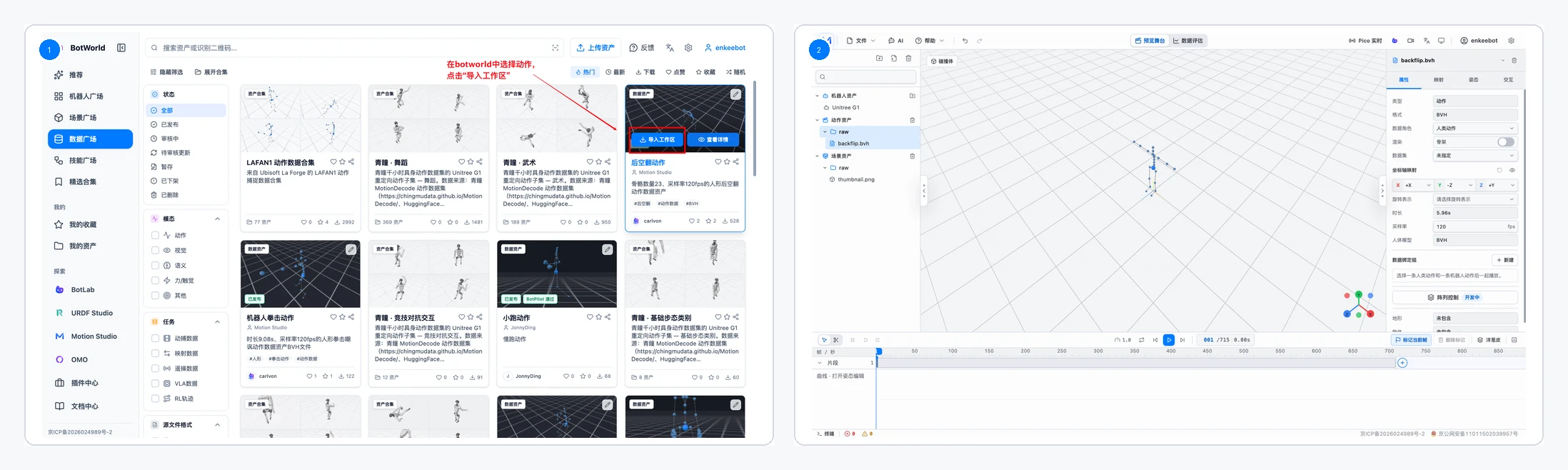
Enter The Motion Studio Workspace
Entering the workspace confirms whether the product entry, default robot and basic tools are ready. Import, preview, editing and export all happen in this interface.
Enter Motion Studio from a BotWorld resource card or resource detail page.
After entering, confirm that the current workspace is "Preview Stage".
Check whether the left side already includes a default robot asset, such as Unitree G1.
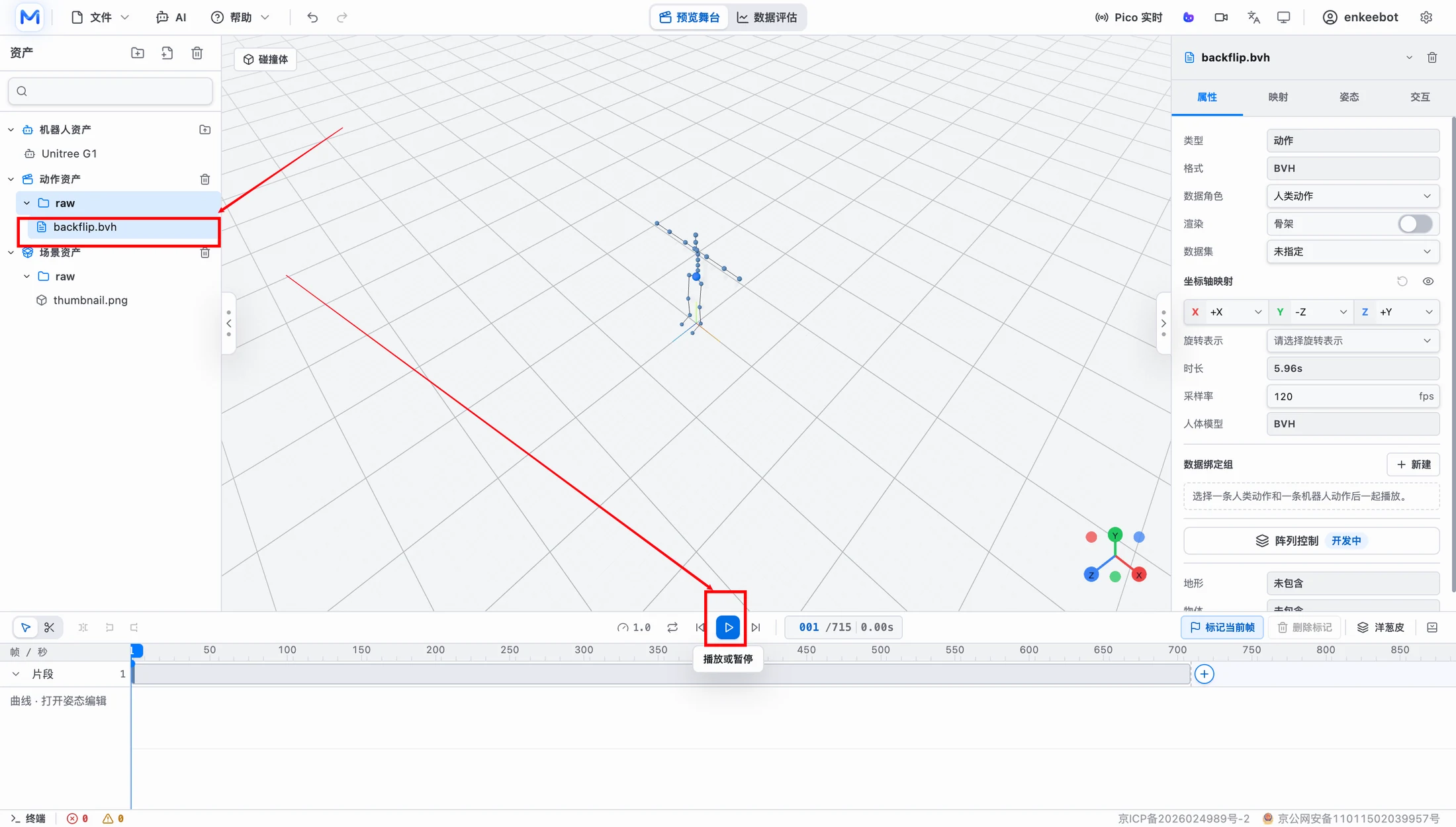
Check Motion On The Preview Stage
Preview checking helps you find obvious issues before mapping or editing, such as discontinuous motion, wrong coordinate direction, robot model mismatch or abnormal posture.
- Select the motion asset you want to check on the left.
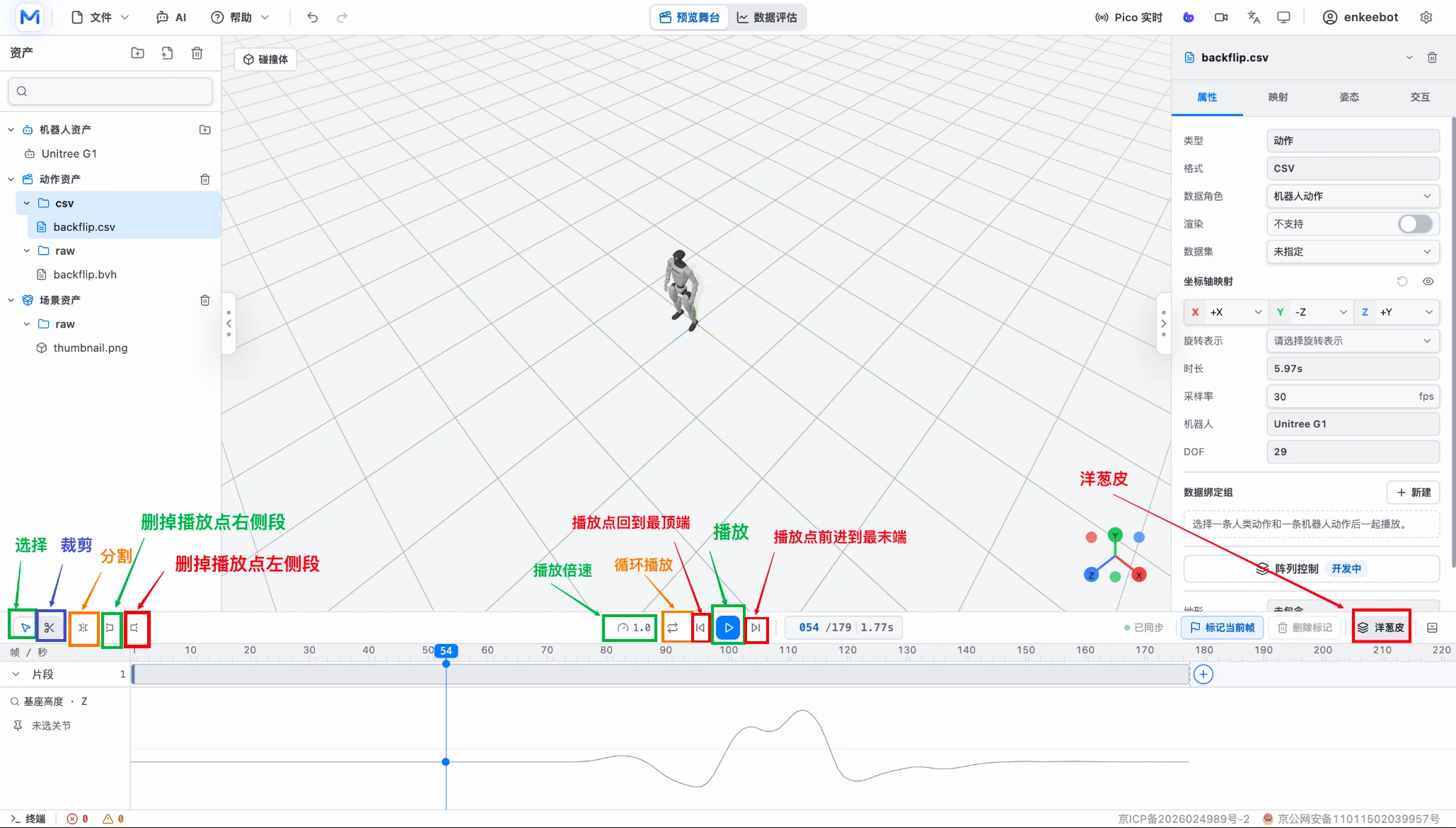
- Use the bottom play button to play the motion.
- Drag the timeline to view a specific frame.
- Rotate the center 3D stage to check posture, ground relationship and root movement.
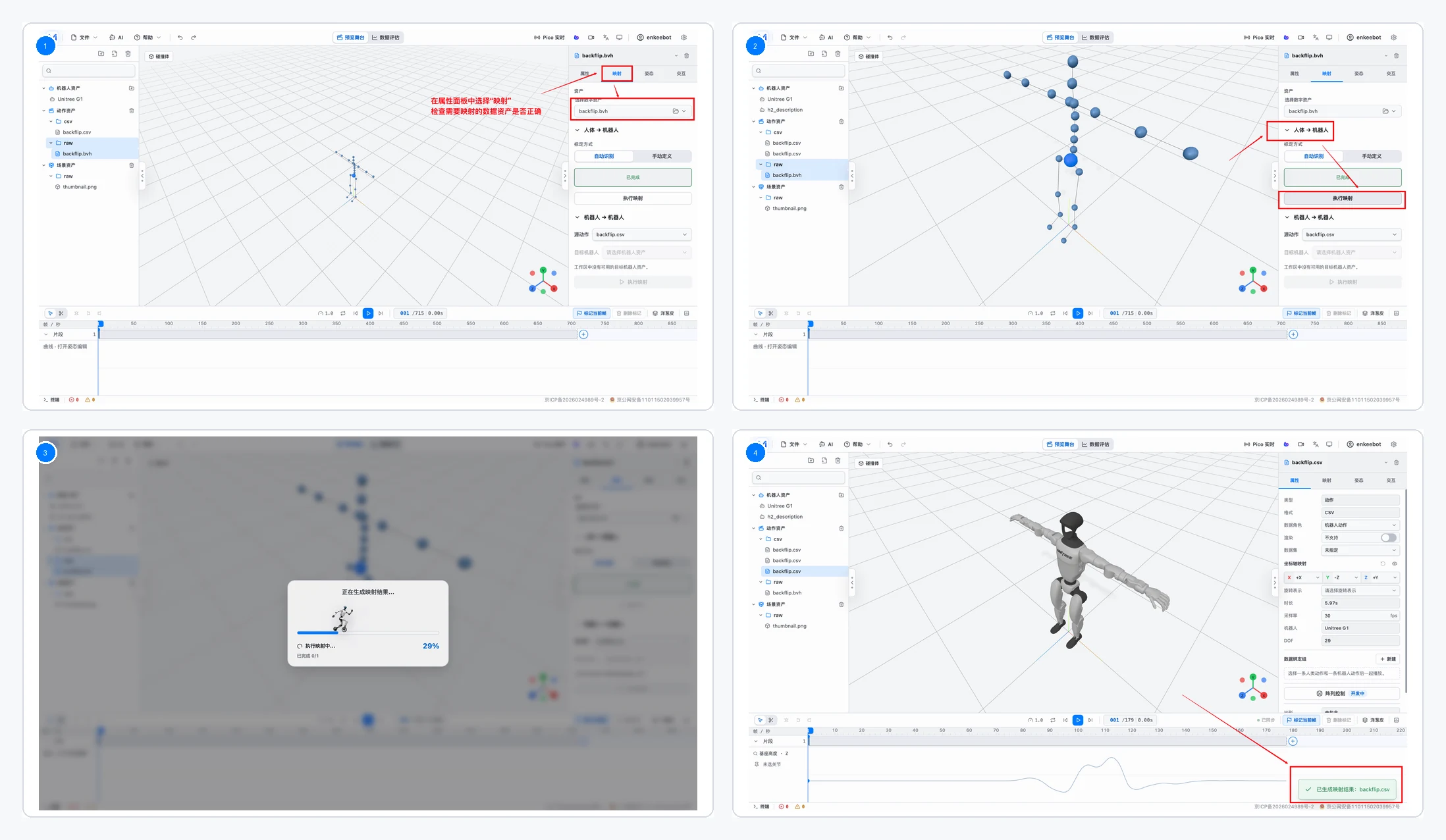
Retarget Human Motion To A Robot
If the imported data is BVH, SMPL/SMPL-X or other human motion, use mapping to convert it into motion that can be played by the target robot. This quickstart only covers the basic human-to-robot flow.
- Select the motion asset that needs mapping.
- Switch to the "Mapping" tab in the right properties panel and confirm the source motion data and target robot, such as Unitree G1.
- Choose automatic calibration or manual T-pose calibration as needed.
- Run mapping and wait for the progress bar to finish.
- After mapping succeeds, check the generated robot motion asset and success message.
Note: if no robot model is imported or selected manually, the system maps to Unitree G1 by default.
Use The Timeline For Basic Inspection And Editing
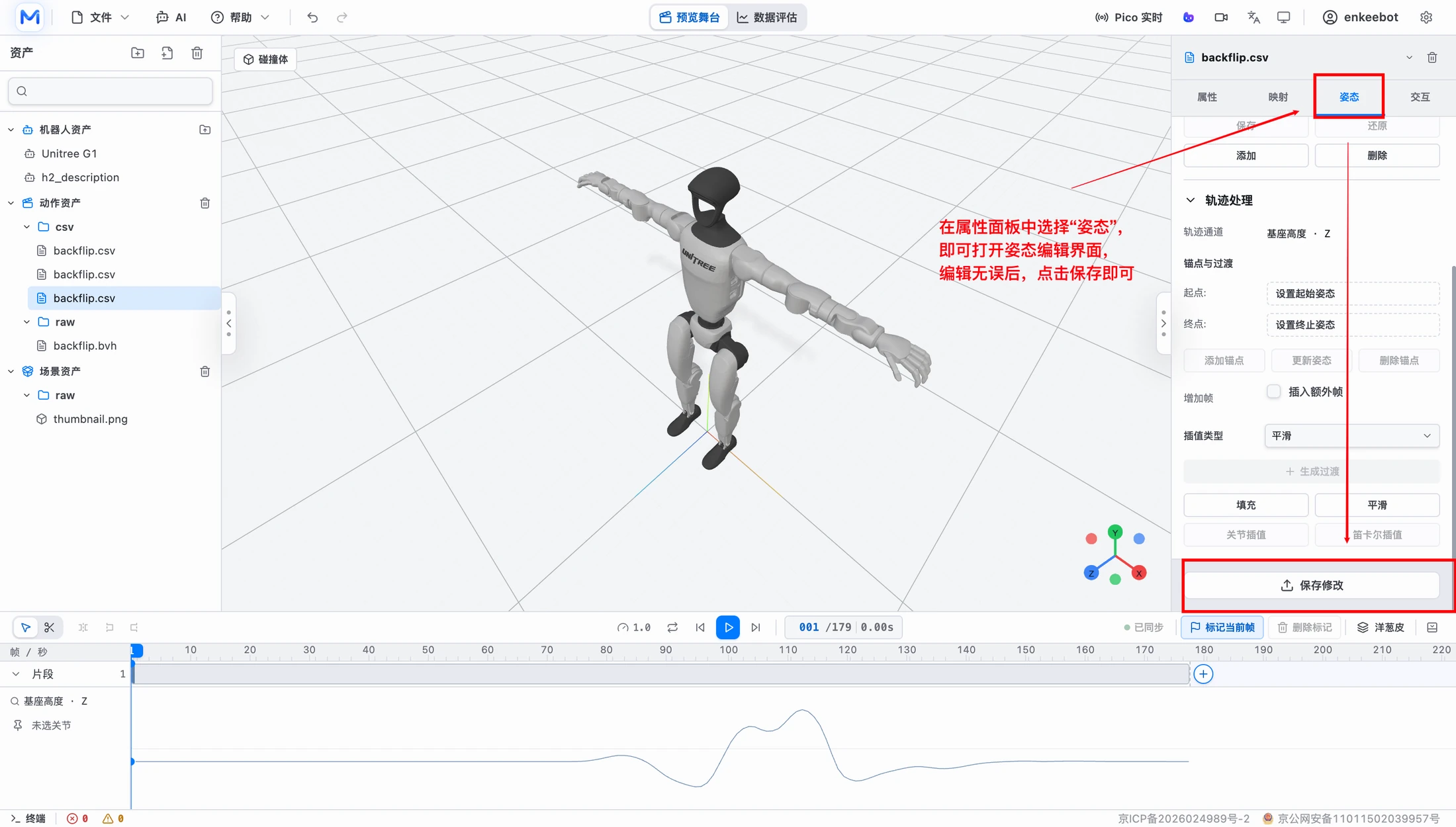
After retargeting or importing robot motion, use the timeline to inspect clips and curves. You can also open the pose tab to adjust a single frame or local trajectory. For the quickstart, focus on playback, scrubbing, markers and curve inspection.
Add or remove frame markers on the timeline as needed.
When a pose needs adjustment, switch to the "Pose" tab on the right and edit there.
Export Locally
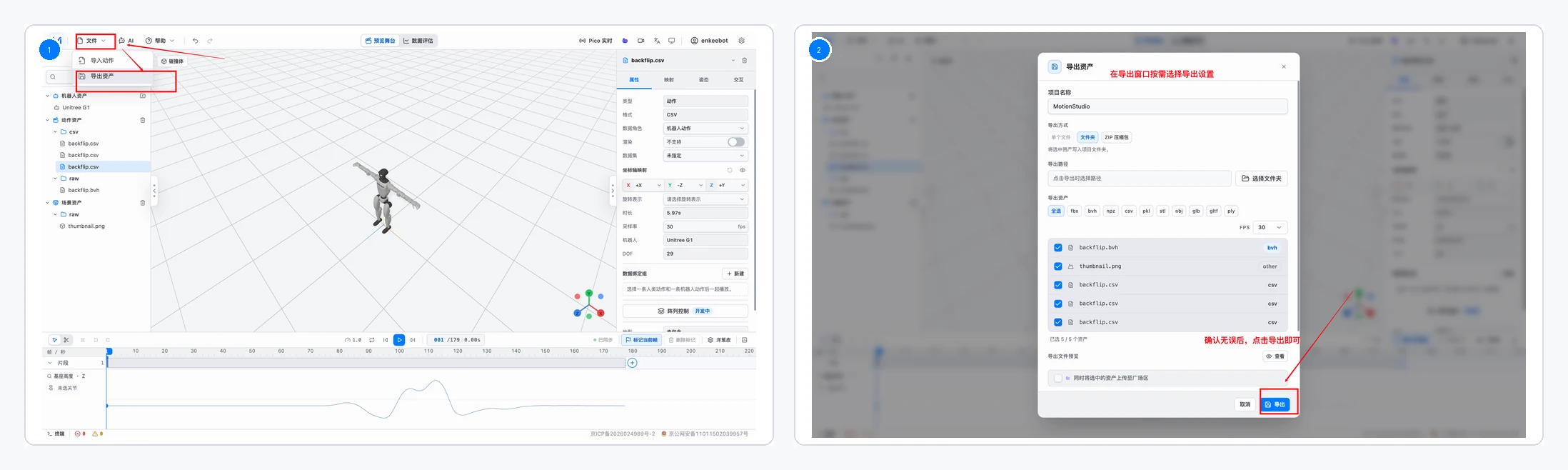
After inspection and editing, use the top "File" menu to export locally. In the current version, save important results locally after editing.
- Open the top "File" menu and choose asset export.
- In the export dialog, choose single file, directory or ZIP mode.
- Select the motion, robot or scene assets to export.
- Set FPS, such as 30, 50, 60 or a custom value.
- Confirm the file name and output location, then export.
- After export completes, check that the local file, folder or ZIP package is complete.
Done When
You have completed the Motion Studio quickstart when you can:
- Import any motion asset from BotWorld and open the Motion Studio workspace.
- Complete one human-motion-to-robot-motion retargeting flow.
- Preview the motion, inspect the timeline or make a basic pose edit in Motion Studio.
- Export the processed motion or project resource locally.