
URDF Studio quickstart
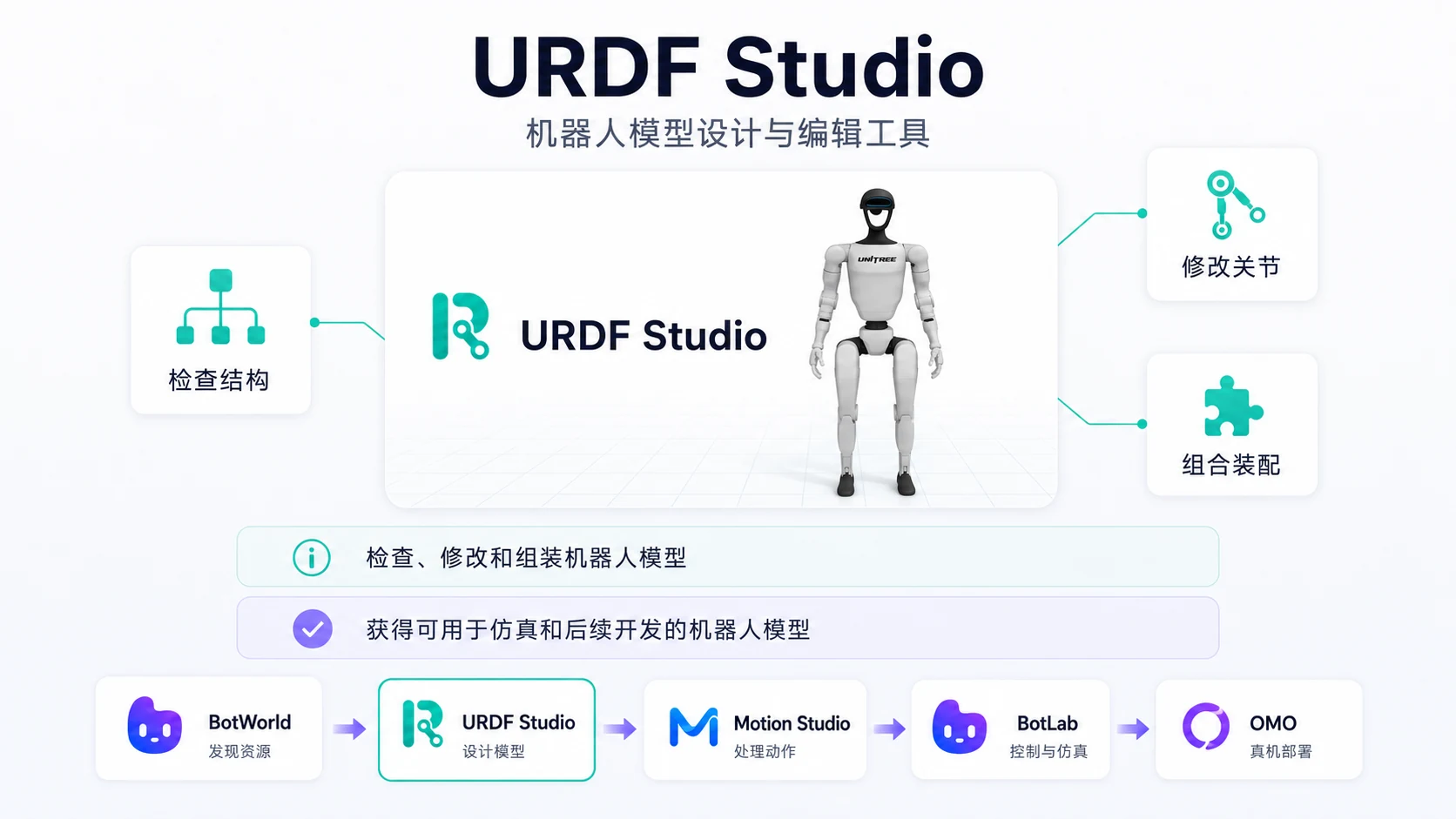
This section continues with the Unitree G1 humanoid robot and walks through the shortest path: “import from BotWorld -> view the model -> make a simple edit -> export the model.”
This page covers only the basic URDF Studio flow. For structure design, collision body adjustment, physical parameters, auxiliary tools and multi-component assembly, read the URDF Studio product guide.
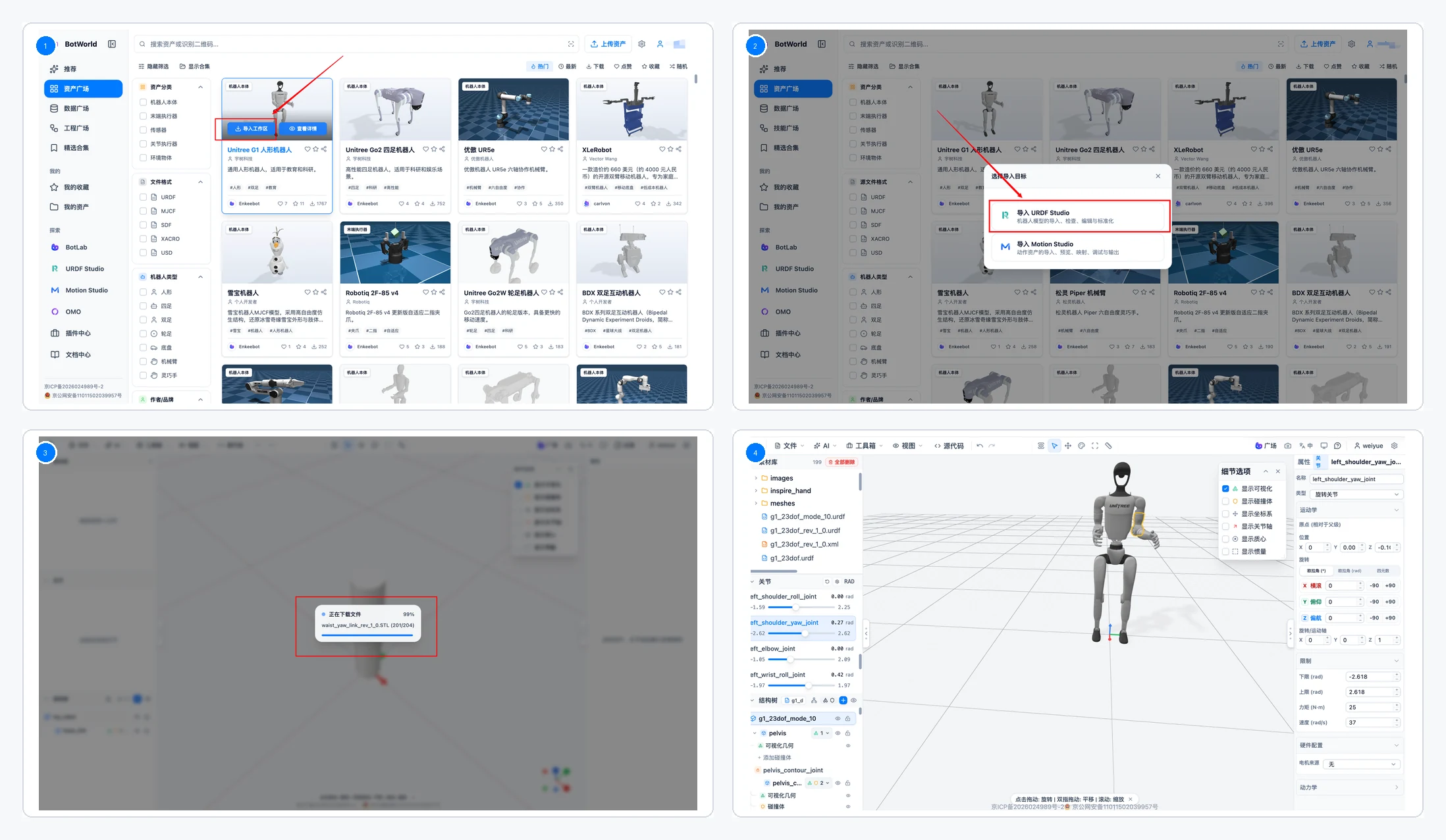
Import the Model Into URDF Studio
On the Unitree G1 resource detail page or resource card in BotWorld, click "Import to workspace".
In the import dialog, choose "URDF Studio".
Wait until the robot files and related resources finish loading. If the model keeps loading for a long time, refresh the page and import from BotWorld again.
View the Robot Model
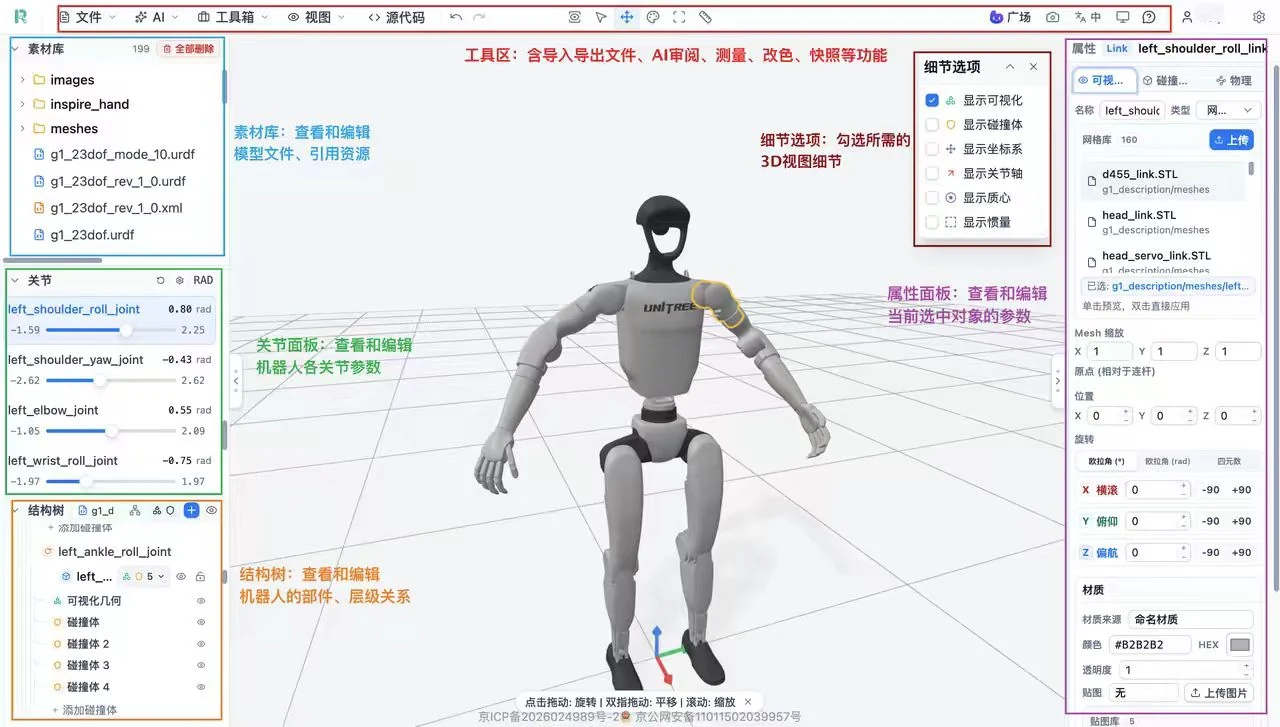
After loading completes, URDF Studio shows the robot structure and 3D model.
Basic operations:
- View robot parts and joints in the structure tree.
- Click a part in the structure tree to locate the corresponding model in the 3D view.
- Drag the mouse to rotate the camera.
- Scroll the mouse wheel to zoom in or out.
- Check whether the overall robot structure is complete.
Make a Simple Edit
Select the robot part or joint that you want to modify in URDF Studio, then view its parameters in the properties area.
Depending on the task, you can make simple adjustments such as:
- View or edit part position.
- View or edit part rotation.
- View a joint's parent-child connection.
- View joint type and motion range.
- Adjust geometry or structural parameters.
During editing, the 3D view previews model changes in real time.
Export the Robot Model
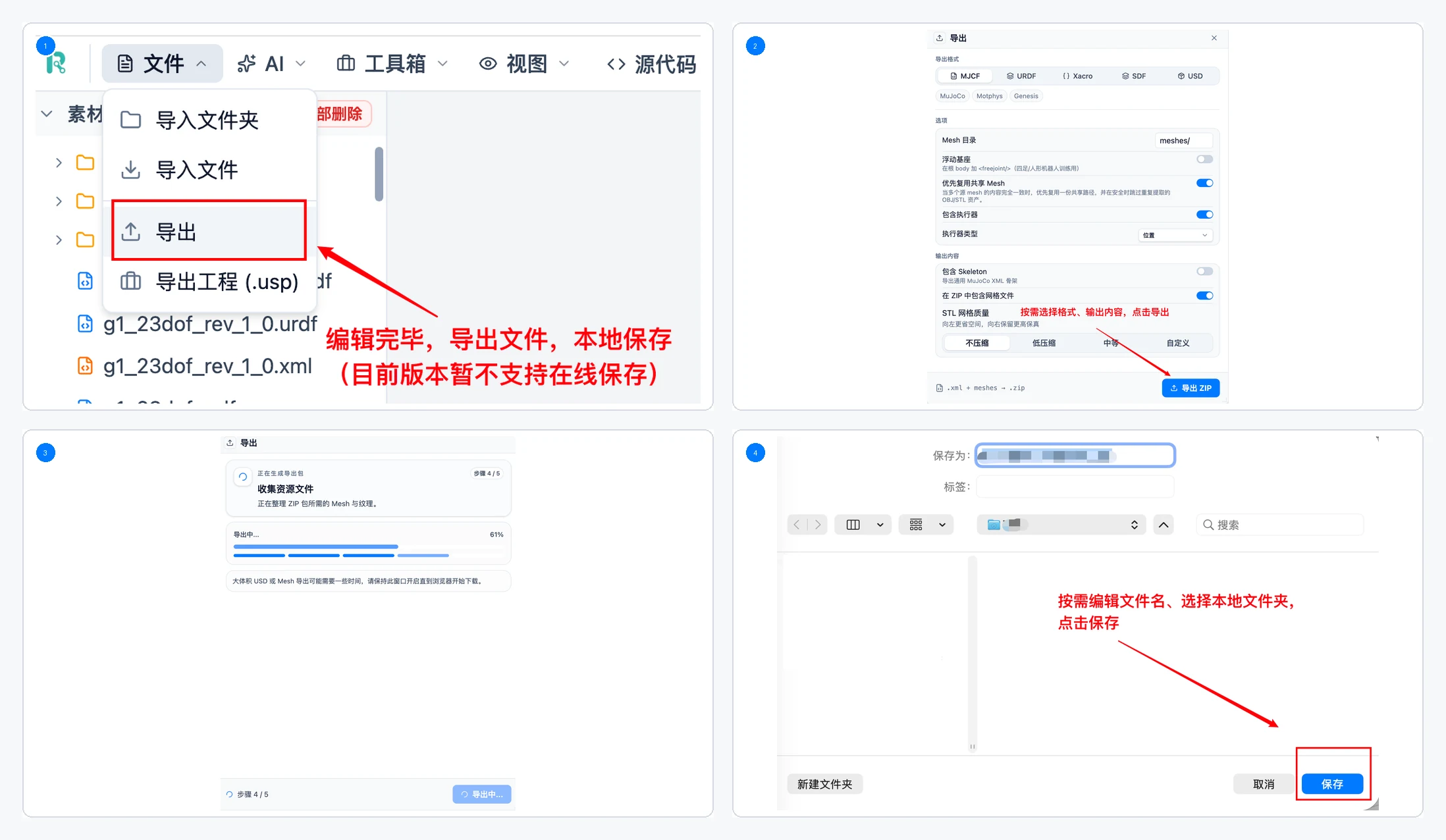
After editing, click the "Export" button on the page.
Note: The current version does not support online saving. Export the model or project file locally after important edits to avoid losing work.
Select the file format you need for the next step. After clicking, wait for the progress bar to finish.
Confirm the export content and file name, choose a local folder in the system save window, then click "Save".
After export completes, check that the expected file was created in the local folder.
Done When
You have completed the URDF Studio quickstart when you can:
- Import a model from BotWorld into URDF Studio.
- View the robot model and structure tree in URDF Studio.
- View or edit one robot part or joint.
- Export the edited model locally.
You can also import a local robot model directly into URDF Studio, then view, edit and export it.